Last updated November 16, 2026
Start with an existing variant
A variant is a purchasable version of a product. It can have its own SKU, barcode, price and inventory.
Use the product Import flow with grouped rows. Each product group must contain at least one variant that already exists in Shopify. Simple CSV uses that variant's SKU or barcode to find the product, skips the existing variant and adds the new variants.
A group containing only new SKUs or barcodes can create a new product.
A shared handle or another grouping value does not identify an existing Shopify product. Keep one existing variant row in every group.
For example, a shirt already has sizes S and M. Keep its existing S row and add a row for L. Simple CSV uses the S variant to find the product. It skips S, leaves M alone and adds L.
Download a template from Simple CSV
Open Simple CSV from Shopify Admin. On the dashboard, find "Need a template?" and select "Download here."
In the template window:
- Under "What do you want to do?", choose "Add new products."
- Under "How should the template start?", choose "Use current products."
- Select "Download."
Simple CSV starts preparing the file and shows this message:
We started preparing your template. You will receive the download link in your email.
The file is named simplecsv-template-add-products.csv. It contains the products and variants currently in your Shopify store.
Make a separate working copy. Remove the products you do not plan to change and keep at least one existing variant row for each product that needs new variants.
Prepare the variant rows
Copy an existing variant row for the product, then change the fields that belong to the new variant.
- Use the same Handle value for all rows in one product group.
- Keep the existing variant's SKU or barcode unchanged on the row used for matching.
- Give every new variant a unique SKU and option combination.
- Use the product's existing option names. Include a title and the selling price for each new variant.
If a product uses more than one option, keep those option columns in the file. A product with Size and Color, for example, needs the correct values in both option columns. The template includes two options. For a product with three options, add Option3 Name and Option3 Value columns. Copy the existing third option name and values from Shopify, enter the new variant values and map both columns.
Our Shopify CSV guide explains variant rows and handles for Shopify's own importer. The Simple CSV steps below use an existing SKU or barcode to find the product.
Import the file
- Export your products from Shopify as a backup. Test the workflow with one product first.
- Open Simple CSV from Shopify Admin. Start an Import and upload the working CSV.
- On "Import strategy", choose "Multiple rows per product."
- Set "Group rows by column" to Handle when using the downloaded template.
- Check the mapping. Map Title, Variant SKU or Variant Barcode, the option fields and Variant Price.
- After Mapping, open Choose products. On Pro and Scale, including trials, set conditions to include only matching products. Free continues with the whole file. Conditions apply to complete products and all their variant rows.
- After Choose products, choose Skip this step in AI Rewrite to keep the mapped text as it is. AI Rewrite can translate or restyle mapped text on every plan.
- Check the Preview. If you map inventory, choose the Shopify location that the import should update.
- Continue to "How should we handle existing products?"
On every plan, AI Rewrite offers optional Brand voice and Protected terms settings for your whole store. Brand voice guides description prose, with the chosen tone taking priority. Protected terms stay exactly as written, with case-sensitive, whole-word matching. These settings do not turn rewriting on.
Keep original text cannot be combined with a target language. Choose another tone to translate. Same as source with Keep original text skips rewriting.
If AI Rewrite rewrites the first product’s title, description or product type, Preview offers Show original text. It switches all three fields to the source text for comparison. The import still publishes rewritten copy. Choose Show rewritten text to switch back. The button is hidden when none of these fields were rewritten.
When an Import or Update uses AI Rewrite, its status page lists the fields being rewritten, target language and tone. It confirms brand voice and protected terms when set, without showing your answers or terms. Reload the page after the run finishes to see “were rewritten” instead of “are being rewritten”. When rewriting starts, the activity log adds one Info line with the same summary. Individual product lines do not list rewritten fields. With AI Rewrite off, neither the section nor the summary line appears.
With AI Rewrite on, Full file dry run rewrites only the first 5 data rows. Remaining rows keep their source text. The whole file is still checked without changing Shopify. The status section and log summary explain this limit.
Choose how to handle existing products
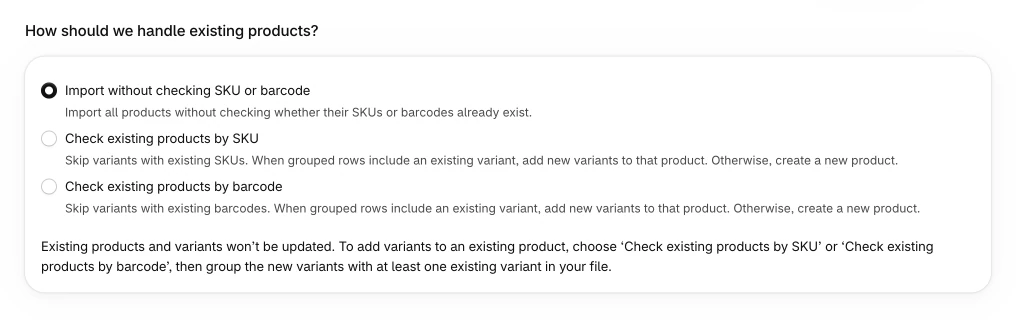
The screen offers these options:
- "Import without checking SKU or barcode" imports all products without checking whether their SKUs or barcodes already exist. Do not choose this when adding variants to an existing product.
- "Check existing products by SKU" skips variants with existing SKUs. When grouped rows include an existing variant, Simple CSV adds new variants to that product. Otherwise, it creates a new product.
- "Check existing products by barcode" skips variants with existing barcodes. When grouped rows include an existing variant, Simple CSV adds new variants to that product. Otherwise, it creates a new product.
Choose SKU when your existing variants have unique SKUs. Choose barcode when the same barcode is present in Shopify and your file.
The screen also explains the limit:
Existing products and variants won’t be updated. To add variants to an existing product, choose ‘Check existing products by SKU’ or ‘Check existing products by barcode’, then group the new variants with at least one existing variant in your file.
Check the Summary and start the import. Read the import log when it finishes. Then open the product in Shopify and confirm that the new variants were added.
On Summary, “Full file dry run” checks the whole file without changing Shopify. On Pro and Scale, “Run first 100 rows” makes real changes in Shopify. This limited run processes the first 100 data rows and includes complete products at the cutoff. It is separate from Free’s file limit.
If you choose “Import without checking SKU or barcode”, a later full import creates the products from the limited run again. Check your setting for existing products before continuing.
Read how to use a limited live run and return to the full file.
Grouping and matching do different jobs
The grouping column tells Simple CSV which rows belong together. The existing SKU or barcode identifies the Shopify product that receives the new variants.
In this grouped Import flow, SKU and barcode matching is exact and ignores surrounding spaces, but it is case-sensitive. Copy the existing identifier exactly as it appears in Shopify. TEE-S-BLU can match " TEE-S-BLU ". It does not match tee-s-blu or TEE-S-BLU-CP.
If an identifier belongs to more than one Shopify product, the whole product group fails. None of its new variants are added. The import log names the identifier. The group also fails if its existing identifiers belong to different Shopify products.
Handle and Shopify Product GID can identify products during an Update. They do not add missing variants. To add variants, use Import with grouped rows and an existing SKU or barcode.
To change existing variant prices separately, follow our CSV price update guide.