AI Rewrite helps you create unique product copy in your brand’s voice. It is available on every plan for both Import and Update. Open Simple CSV from Shopify Admin to start.
Choose the language, tone and fields
After Mapping, open Choose products. On Pro and Scale, including trials, set conditions on file columns to import or update only matching products. Free continues with the whole file. Unselected products stay unchanged. While conditions are set, out-of-feed cleanup is disabled. Then continue to AI Rewrite and Preview.
AI Rewrite comes after Choose products and before Preview. It also appears in the app navigation while you are inside an import or update.
First map the text fields you want to change. AI Rewrite only offers fields that you have mapped.
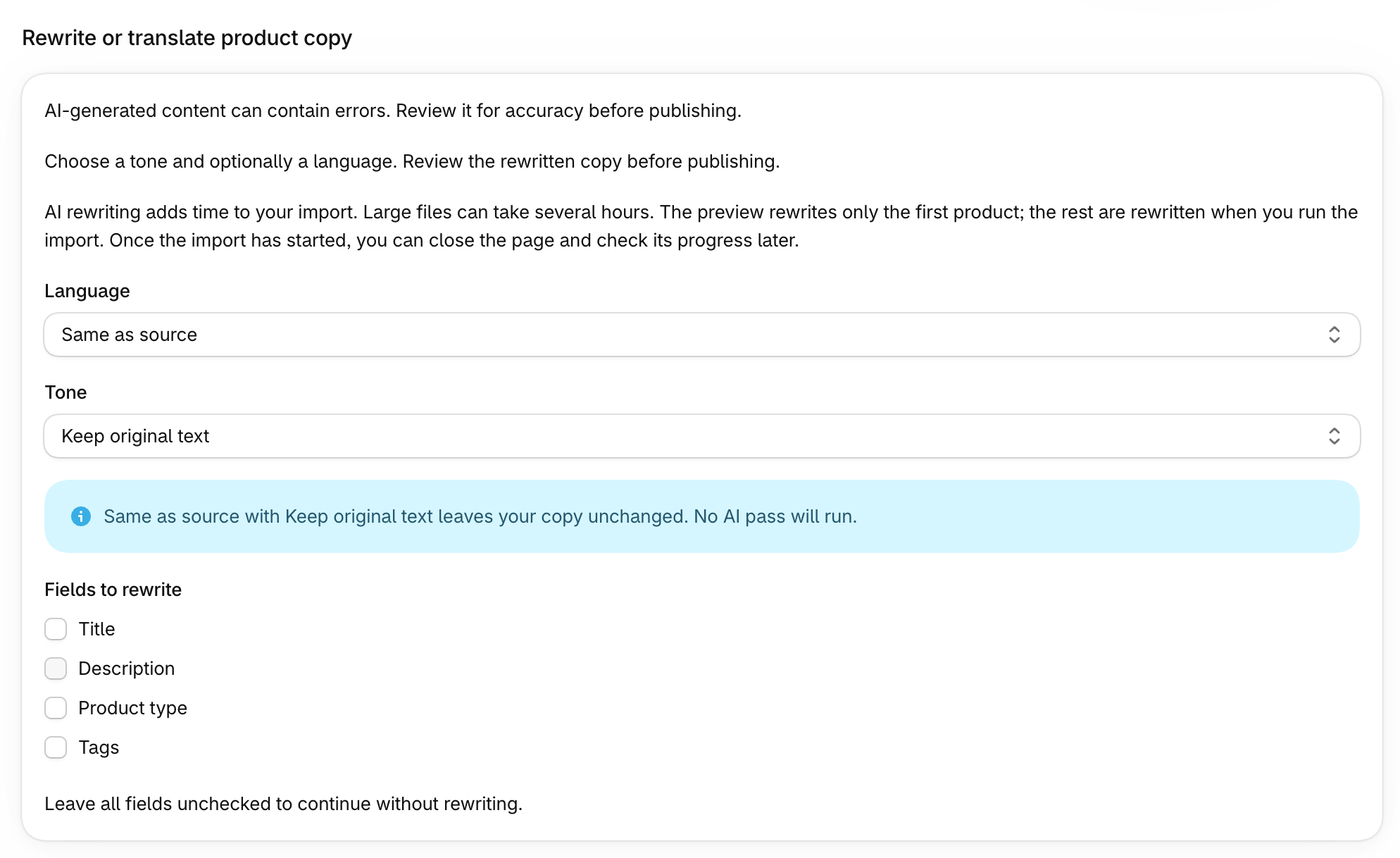
The three choices are Language, Tone and Fields to rewrite.
Language options:
- Same as source (default)
- Danish
- Dutch
- English
- French
- German
- Italian
- Polish
- Portuguese
- Portuguese (Brazil)
- Spanish
- Swedish
Same as source keeps each product in its current language. Choose a language to translate and apply your selected tone together. English has no separate US or UK choice.
Tone options:
- Keep original text (default)
- Professional
- Friendly and conversational
- Premium / luxury
- Technical, spec-led
- Playful and bold
- Short and minimal
Fields to rewrite:
- Title
- Description
- SEO title
- SEO description
- Product type
- Tags
Keep original text cannot be combined with a target language. Choose another tone when translating.
Set your brand voice
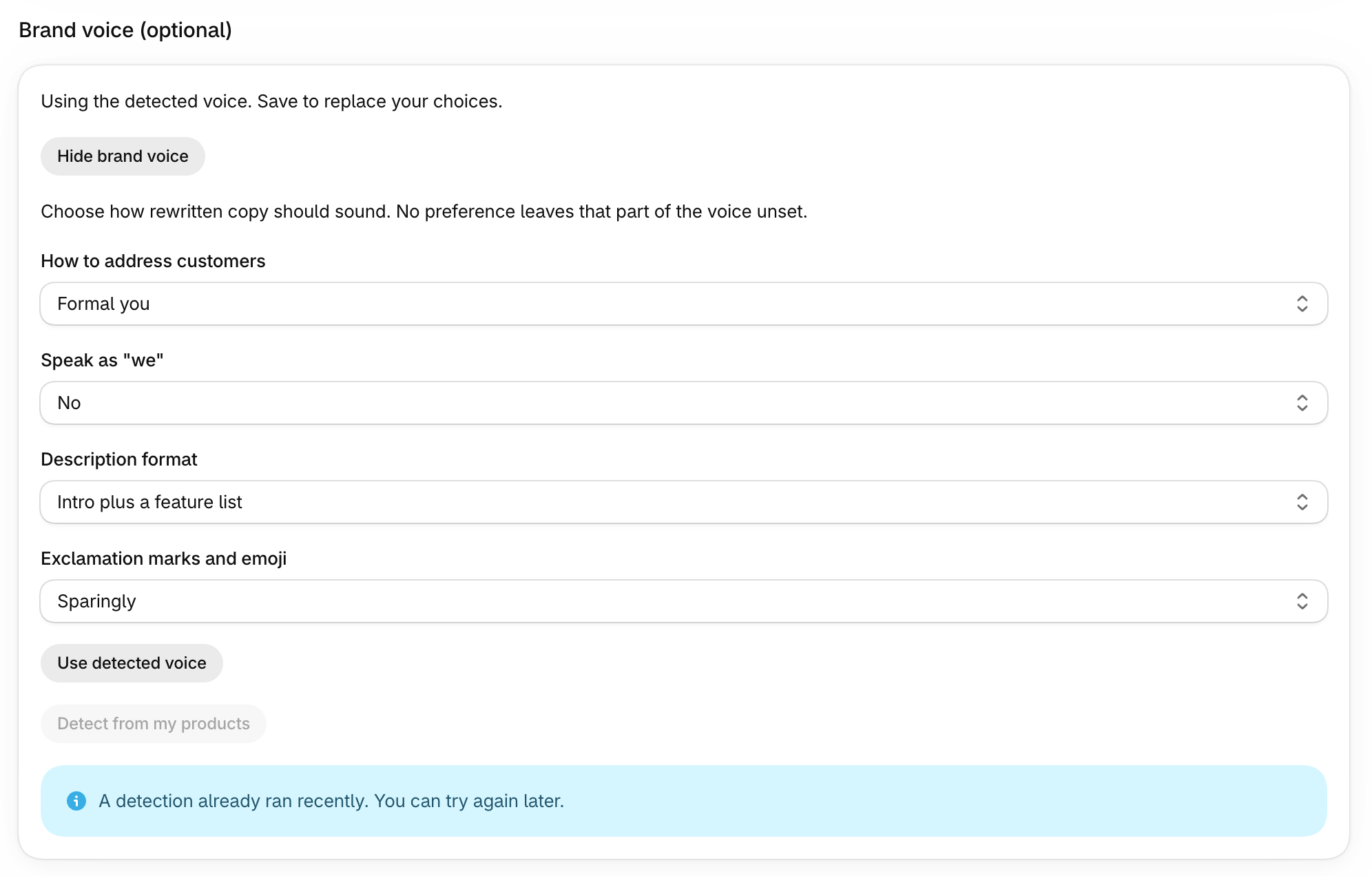
Open the collapsed Brand voice (optional) section in the AI Rewrite step of Import or Update. Choose from four questions:
| Question | Choices |
|---|---|
| How to address customers | Informal you, Formal you or do not address directly |
| Speak as “we” | Yes or No |
| Description format | Short and scannable, intro plus a feature list or flowing storytelling |
| Exclamation marks and emoji | Never or sparingly |
Each question also offers No preference, which leaves that part of the voice unset. There is no free-text brand voice field.
Simple CSV can detect a voice from your store’s existing product copy in the background. When it finds a usable voice, the detected answers are selected and labeled as detected. Otherwise, no detected answers are selected. You can still choose your own.
Your choices are kept separately from the detected answers. Use detected voice returns to those detected answers. Save to replace your choices. Detect from my products checks your product copy again, at most once per store per 24 hours. If detection ran recently, try again later. If no usable copy is found, a message explains this.
Brand voice applies only to the prose in descriptions. It does not apply to titles, tags, SEO titles or SEO descriptions. Facts and the existing HTML structure are preserved. The tone selected for each import or update takes priority over brand voice.
Keep protected terms unchanged
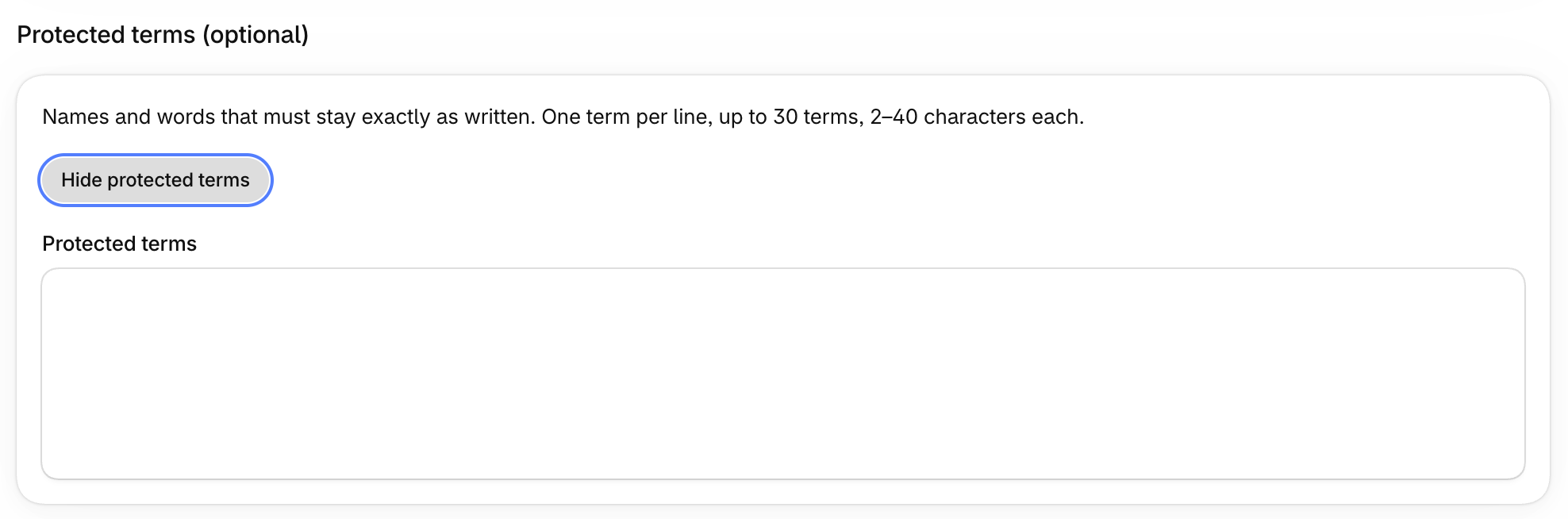
Open the collapsed Protected terms (optional) section. Enter one term per line, up to 30 terms. Each term must have 2–40 characters.
Terms are case-sensitive and stay exactly as written. They match whole words only. For example, Pro does not affect Protective. Each product’s own vendor name is still protected automatically.
Brand voice and protected terms are store-wide settings on every plan. They apply to every Import and Update that uses AI Rewrite. On Pro and Scale, they also apply to every scheduled action that uses AI Rewrite. These settings do not turn rewriting on by themselves. There is no keyword setting.
Continue or skip
With Same as source and Keep original text, no rewriting happens. The buttons say Skip this step. Selecting no fields also skips rewriting.
Otherwise, select Save and continue to reach Preview. Only the first product is rewritten for the preview. Other products are rewritten when the import or update runs.
The Preview page includes an AI Rewrite section. When the first product’s title, description or product type was rewritten, it shows “Showing rewritten text” and a Show original text button.
Click the button to show the original source text in all three fields together. The button changes to Show rewritten text so you can switch back. It is hidden if none of these three fields were rewritten. SEO title, SEO description and tags are not shown on Preview, so this toggle does not cover them.
Switching to the original only changes what you see. The import still publishes the rewritten copy. To import your source text, use Back to AI rewrite and skip the AI Rewrite step. You can also change which fields are rewritten.
Check the preview carefully. AI-generated content can contain errors. Please review the data for accuracy.
What stays the same
AI Rewrite never changes handles, SKUs, barcodes, vendors, option names or option values. The product’s own vendor or brand name stays as written inside titles and descriptions. Numbers, measurements, links, images and HTML formatting are preserved.
It changes the product’s main content only. It does not write translations to Shopify Translate & Adapt or your store’s secondary languages.
Follow progress and check the log
AI rewriting adds time. Large files can take several hours. Once the import has started, you can close the page and check progress later.
During rewriting, the status page shows Preparing your product text… and a rows rewritten count beside the usual counters. It also shows the notice AI-generated content can contain errors. Please review the data for accuracy.
The status page has an AI Rewrite section while an import or update runs and after it finishes. It lists the selected fields, for example Title and Description, the target language and the tone.
While the run is active, the section says “These fields are being rewritten for every product in this file: …”. After the run finishes, reload the page to see “These fields were rewritten …”. The wording changes only when the page reloads.
When set, it also says “Rewritten copy follows your brand voice choices.” and “Protected terms stay exactly as written.” Your actual brand voice answers and protected terms are never shown.
When rewriting starts, the activity log adds one Info line with the same summary. Individual product lines do not list rewritten fields. With AI Rewrite off, there is no AI Rewrite section or summary line.
If text cannot be rewritten safely, Simple CSV retries once automatically. If it still fails, that product is not imported or updated in that run. The original text is never published in its place. Other products continue.
For example, a product may fail a check for a number, measurement or target language. The import log names the affected product or row. The preview or summary warns:
Some product text could not be rewritten safely. Affected products will not be imported or updated. See the import log for details.
Open the import log to find the affected rows before trying again.
See what changed in Shopify
On Scale, including trials, open Run status → View run change history to compare values before and after a run. Browse confirmed changes without searching, or narrow them down by exact SKU, product name or Shopify product or variant ID. Values that stayed the same are not listed. History is kept for 90 days and cannot undo changes. Free and Pro do not include it. Changes made by AI Rewrite are labeled AI. Previews and dry runs record no history. Read how to use run change history.
Scheduled imports and test runs
On Pro and Scale, a saved URL automation reuses your AI Rewrite choices. Changing its language or tone, or the store-wide brand voice or protected terms, makes the next scheduled run process the file again. This applies even if the file itself is unchanged. Previously rewritten text can be reused when the text and rewrite settings still match.
Scheduled runs skip a file only when both the file and settings match that automation’s last fully successful run. Run now processes even an unchanged file. If the action is held, review and save its mapping first. A skipped scheduled run does not restore changes made directly in Shopify.
With AI Rewrite on, Full file dry run rewrites only the first 5 data rows. Remaining rows keep their source text. The whole file is still checked without changing Shopify. The status section and log summary explain this limit. While running, the summary says the fields are being rewritten for the first 5 data rows. After completion and a page reload, it says they were rewritten.
On Pro and Scale, Run first 100 rows makes real Shopify changes for a small portion of the file. Read how it differs from Full file dry run before choosing this option.
Characters per billing cycle
AI Rewrite covers translation and tone changes on every plan:
- Free: 150,000 characters per billing cycle
- Pro: 10 million characters per billing cycle
- Scale: 50 million characters per billing cycle
These allowances reset every billing cycle. See pricing for the other plan limits.
Product data sent for rewriting
Selected product text, including titles, descriptions, tags and product type, is rewritten by AI. The product’s vendor name and title are included as context. Read our privacy policy for data use and retention details.
For mapping and matching settings, see the import strategy guide.