Choose products lets you import or update only products that match conditions on your file’s columns. Open Simple CSV from Shopify Admin. In either Import or Update, this step comes immediately after Mapping, before AI Rewrite and Preview.
It is available on Pro, Scale and legacy Bronze/Silver/Gold plans, including trials. On Free, the step is locked. Continue with the whole file or upgrade to use conditions.
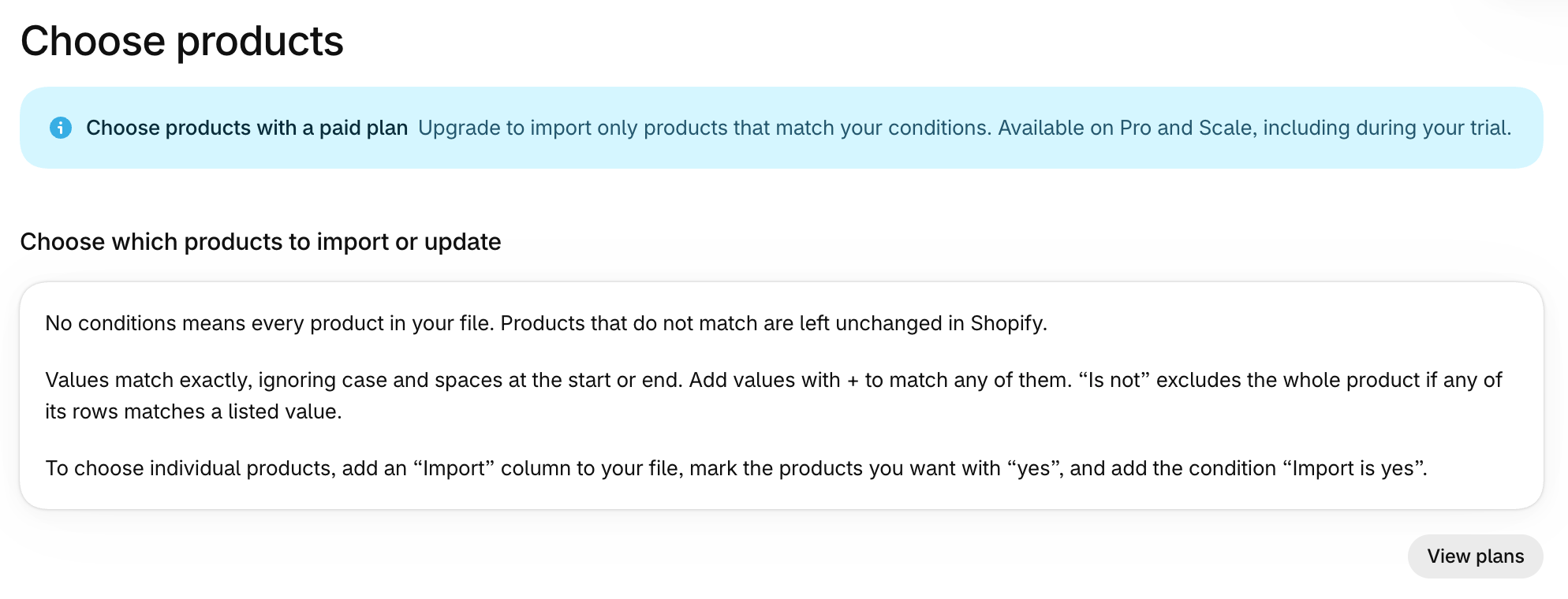
Set conditions on your file’s columns
Choose a column, is or is not, and type a text value. Every column in your file is available, including columns you did not map to Shopify fields.
Use + beside a value to add alternatives. For example, Vendor is Philips + Braun includes either brand. Remove extra values or whole conditions with their remove buttons. Use Add condition for another condition.
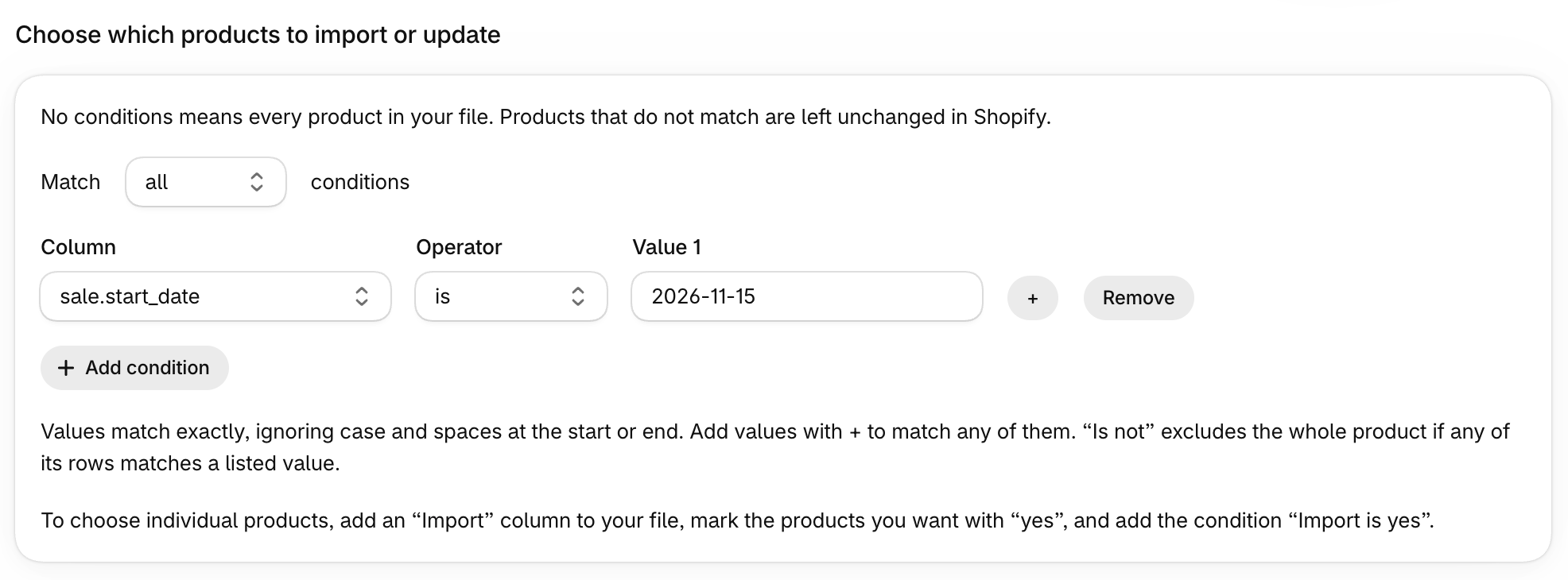
The screenshot matches one date as text. It does not select a date range.
Choose Match all conditions to require every condition. Choose Match any conditions to require at least one. With no conditions, the whole file is processed, as before.
How values match
Values must match exactly, but letter case and spaces at either end are ignored. YES, Yes and yes all match yes. Philips Lighting does not match Philips. An empty value matches an empty cell.
Conditions apply to whole products, including all their variant rows. With is, a product is included if any of its rows has a listed value. Variant rows with a blank Vendor stay with that product. With is not, the whole product is excluded if any of its rows has a listed value.
There is no contains or greater/less-than matching, nested condition groups or list of values to pick from. Conditions use columns in your file, not Shopify collections or tags.
Choose individual products with your own column
Add an Import column to your file. Put yes next to the products you want, then set Import is yes in Choose products. There is no product or SKU picker.
There is no live count or check button to preview how many products will match. Check the result after the run.
Read the result
If nothing matches, the run still finishes without importing or updating products and shows a warning. The summary and run log show how many products were skipped by your selection.
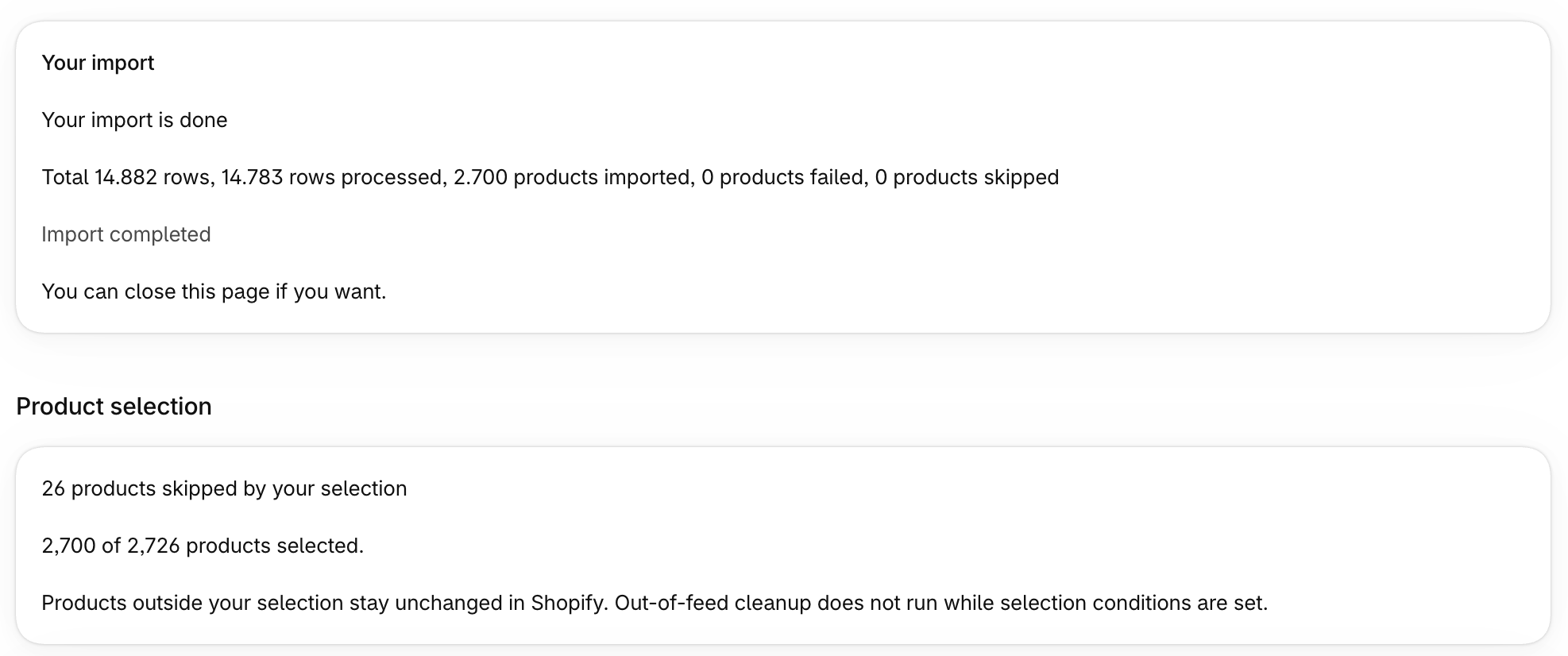
This count is a completed run result. The separate general skipped-products counter is not the selection count.
Products outside your selection stay unchanged in Shopify. The selection never archives or deletes them. While conditions are set, out-of-feed cleanup is disabled. That means Scale’s optional status changes for missing products and stock changes for missing variants do not run.
Reuse conditions on scheduled runs
On Pro and Scale, conditions are saved with your mapping and reused whenever the scheduled file is processed. To change or remove them, open Choose products using the filter icon immediately before the play icon in the automation’s Actions row.
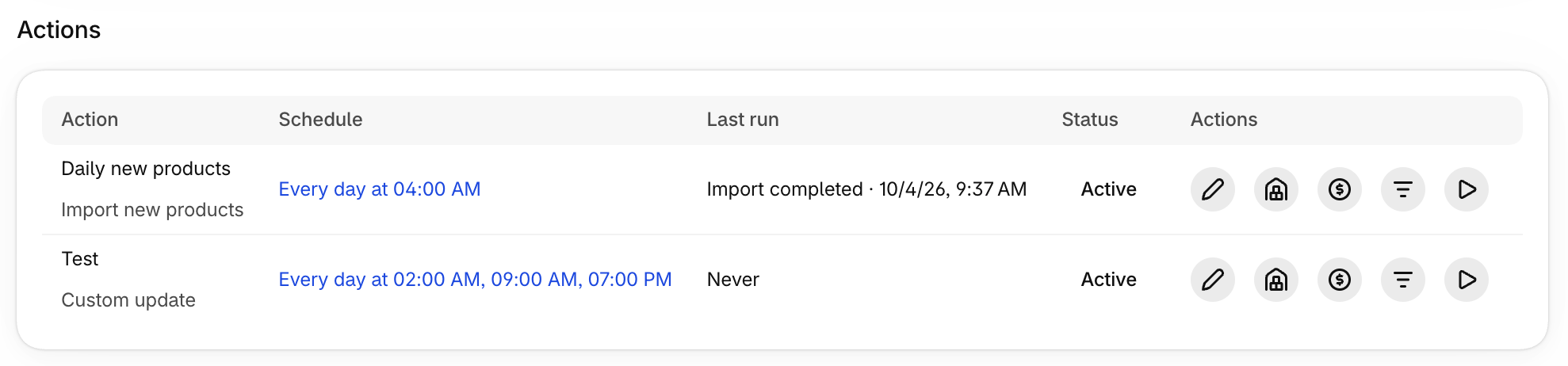
When you edit conditions from an existing feed, the breadcrumb reads Feed. Select Save to save your changes or Back to feed to return to the feed page. Both buttons return to that page. Saved conditions reopen correctly when you edit them again.
In a new Import or Update, the labels remain Mapping, Back to mapping and Save and continue.
If a column used in a condition disappears from a later file, the run stops with a clear message. It never falls back to processing the whole file.
Moving to Free pauses every active automation. Saved tasks, mappings and conditions stay available. Runs with saved conditions cannot continue on Free and never process the whole file as a fallback. Removing conditions does not give Free access to scheduling. After upgrading, activate each task you want to run again in Automations. Read the scheduling limits and pause rules.