Guide
How to Bulk Update Shopify Prices with a CSV
Last updated: October 9, 2026
Shopify's admin lets you edit prices in bulk, but only for products you can select on screen. When a supplier raises wholesale prices by 8% across 3,000 SKUs, that screen is the wrong tool. A CSV is the right one.
This guide covers the three columns that matter for a price update, how to match your rows to products already in your store and how to apply a markup without writing a spreadsheet formula.
The Only Columns You Need
A price update is not a product import. You are sending a match key and the new numbers, not titles, descriptions or images.
| Column | What it does |
|---|---|
Variant SKU | Matches the row to a product variant already in your store |
Variant Price | The new selling price |
Variant Compare At Price | The struck-through "was" price, optional |
Three columns. Nothing else. Every field you leave out of the file is a field the import cannot accidentally overwrite, which is the best habit to build with price updates.
Blank cells in the compare-at column are skipped, so a product with an existing "was" price keeps it. To clear a compare-at price you have to set the value to 0 in the CSV, not by blanking the cell here. That trips people up when a sale ends and the badge stays on the storefront.
Download the Template
Download the price update template (CSV)
Variant SKU,Variant Price,Variant Compare At Price
BRW-CHR-1200-OAK,349.00,399.00
BRW-CHR-1200-WAL,369.00,
LMP-DSK-BR-40,89.95,109.95
FLR-RUG-160X230-GRY,229.00,
You can also generate the file from inside Simple CSV. On the dashboard there's a line reading "Need a template? Download here". Pick Update prices / inventory only under "What do you want to do?", then choose how the template starts. "Use current products" gives you a complete file of everything in your store with the current prices already filled in, which is usually what you want. Change the numbers in the price column, save and upload it back. The other two options are an empty template and an empty template with one example row.
What the Native Importer Costs You Here
Shopify's built-in importer can update prices, but not from a small file. It expects the full product CSV in Shopify's own column layout, so a two-column Handle, Price file is not something you can hand it. In practice that means exporting your whole catalog, editing the price column in a spreadsheet with every other column still attached and re-uploading the lot with the overwrite option ticked.
Every column in that file is live. A stale description or an image URL that stopped resolving goes back into your store along with the new prices.
We wrote up the full trade-off in Shopify CSV Importer vs Simple CSV rather than repeat it here.
Running the Price Update in Simple CSV
Step 1. Pick "Update existing products."
The dashboard offers two starting points. "Import new products" adds products that aren't in your store yet. "Update existing products" changes prices, stock or details on products that already are. Price changes are the second one. Choosing it means the run only writes to products it can match, so a typo in a SKU produces a skipped row rather than a new product in your catalog.
Step 2. Upload the file, or point at a URL.
Both starting points accept a file from your computer or a URL. The URL route is what makes a price update repeatable, because next month you change the file at the source instead of downloading and re-uploading. If your price list lives in Google Sheets, publish it as a CSV URL and use that. The Google Sheets import guide covers publishing the sheet. The Google Sheets update guide covers the update-only workflow.
After you submit a URL, Simple CSV shows download progress before it validates the file. It shows a percentage when the source reports the total size, or the downloaded size so far when it does not. A file uploaded from your computer goes straight to validation without this download bar.
Step 3. Map your columns.
Simple CSV reads your headers and proposes a mapping. Map your SKU column, your price column and compare-at if you have one. Leave everything else unmapped. Five example rows per column show your real data, so a column labeled PRICE that actually contains a cost price is visible before you run anything.
Step 4. Match by SKU.
The matching dropdown offers SKU, Barcode, Product ID and Handle. Use SKU, because a SKU identifies one variant and a handle identifies a whole product. Matching on handle means one price for every variant under it, so a t-shirt in four sizes gets the same number across all four. Barcode is a fallback for stores that keep one reliable EAN code on each variant.
Simple CSV compares SKU, handle and the first barcode exactly after ignoring letter case and surrounding spaces. For example, Blue-Shirt matches blue-shirt, but SF-2000-SET does not match SF-2000-SET-CP. If a variant has several barcodes, Simple CSV checks only the first one. A secondary barcode in the file does not match, so the row is skipped as not found. If an exact SKU or first barcode belongs to more than one product, Simple CSV skips the row and reports the number of matches in the import log.
Step 5. Read the summary.
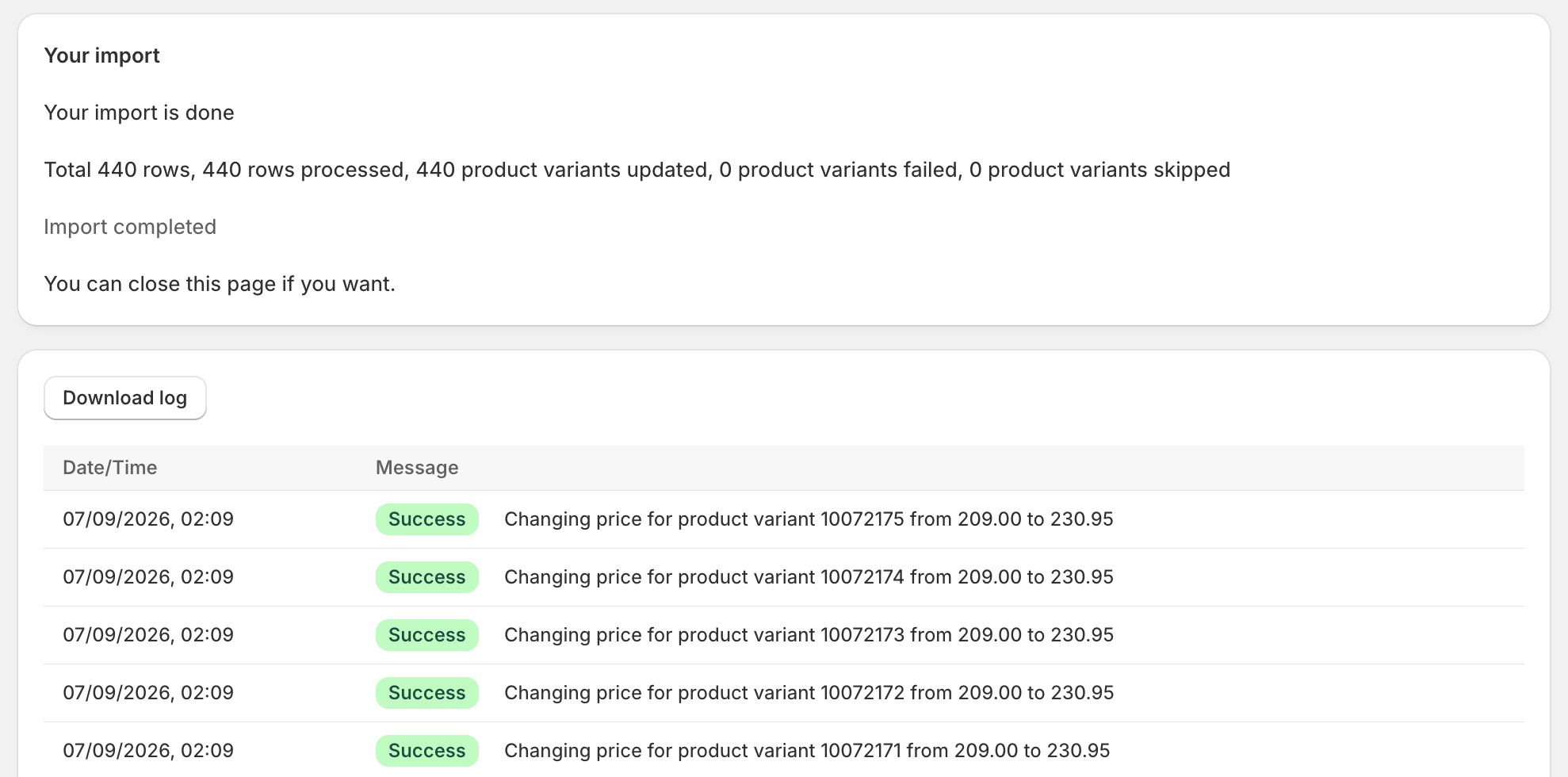
Before anything is written to your store, the summary tells you how many rows are about to be updated. If that number is well below your row count, your match key is wrong. Stop there and fix the file rather than running it and undoing it afterward.
On Free, select Start update for a one-time URL run, or Start limited update if the file is over the 100-row limit.
For a URL source on Pro or Scale, select Save & Run now to save the setup and queue one update without creating or changing a schedule. Select Save & Schedule only when you want to create or edit a recurring schedule.
Applying a Markup Without Spreadsheet Formulas
Most price update files start life as a supplier's wholesale list, which means the numbers in the file are not the numbers you want in your store. The usual fix is a column of =B2*1.25 formulas, recalculated by hand every time the supplier sends a new file.
Pricing rules on Pro and Scale do that inside the app instead. You can add or subtract a fixed amount, apply a percentage change, round the result and force a price ending. A supplier price of 19 with a 25% markup and a .99 ending becomes 23.99 rather than 23.75.
The rule is saved with the import, so the next file from the same supplier gets the same treatment without you touching a formula.
Scheduled Price Updates
Price updates are rarely a one-time job. If your supplier publishes a CSV at a URL, Simple CSV can fetch it and apply your pricing rules on a schedule.
Scheduling is on Pro and Scale only. Pro gives you 3 automations that can run every 6 hours. Scale gives you 7 automations that can run hourly. Both plans come with a 14-day free trial.
After a fully successful scheduled run, Simple CSV skips later scheduled runs when the file and settings are unchanged. Open one of these completed runs to see No changes in the file. It does not touch Shopify. Select Run now on the automation if Shopify prices changed and you need to apply the same supplier file again.
On Free you can still paste a URL and run the update by hand, as often as you like. You just have to press the button yourself. Free is also capped at 100 rows per file, so a full catalog price change needs a paid plan.
What This Does Not Cover
- Market-specific prices. If you run Shopify Markets with per-country price lists, a
Variant Priceupdate changes the base price only. - Automatic discounts and price rules. Those live in Shopify's Discounts section and an import leaves them alone.
- Undo. There is no rollback button. Export your products from Shopify before a large price run so you have the old numbers on disk.
Cost per item is supported, so if you want to update your margins alongside your prices you can map that column too. Most price runs leave it out.
When Something Goes Wrong
The failure we see most often on price updates is not an error at all. The run reports success and almost nothing changed, because the SKUs in the file do not match the SKUs in the store. Leading zeros stripped by Excel are the usual culprit. A SKU of 00412 saved out of Excel becomes 412 and matches nothing. Format the SKU column as Text before you paste into it.
Decimal commas are fine. A price written as 11,95 is read as 11.95, so a file exported from a Dutch or German spreadsheet does not need converting first.
These are the messages Simple CSV records for failed or skipped rows in a price update:
Product variant 00412 not found- Restore the leading zero in the SKU column, save the file and run it again.
- A SKU or first barcode matches more than one product
- Give each product a unique identifier, then run the skipped row again. Simple CSV reports the number of matches and does not choose one product for you.
Failed updating product variant BRW-CHR-1200-OAK- Check the mapped price fields on that row for invalid values, correct them and retry.