Guide
How to Keep Your Own Stock Separate From a Supplier Feed in Shopify
Last updated: September 22, 2026
A merchant selling their own stock alongside stock from a supplier runs into the same problem eventually. An inventory feed from the supplier updates quantities in Shopify, and at some point it overwrites or interferes with the stock the merchant is counting by hand. The fix isn't in the import tool. It's in how Shopify locations are set up before any file ever gets uploaded.
What a Shopify location actually is
A location in Shopify isn't just an address on an invoice. It's a separate inventory pool. Every variant tracks a quantity per location, and Shopify only pulls from the locations you've told it to fulfill from. Two locations means two independent stock counts for the same product, which is exactly what you want when one number comes from a supplier feed and the other comes from you counting boxes in a back room.
Location limits depend on the plan. Starter allows 2 active locations, Basic, Grow and Advanced allow 10, and Shopify Plus allows 200. A location you deactivate stops counting against that limit, so testing a setup and then turning it off later doesn't cost you a slot permanently.
Setting one up takes a couple of minutes. In Shopify admin, go to Settings, then Locations, then Add location. Give it a name that actually means something on an invoice or in an import log later, something like "Supplier Warehouse" rather than "Location 2". You'll decide there whether it fulfills online orders. New locations are set to fulfill by default.
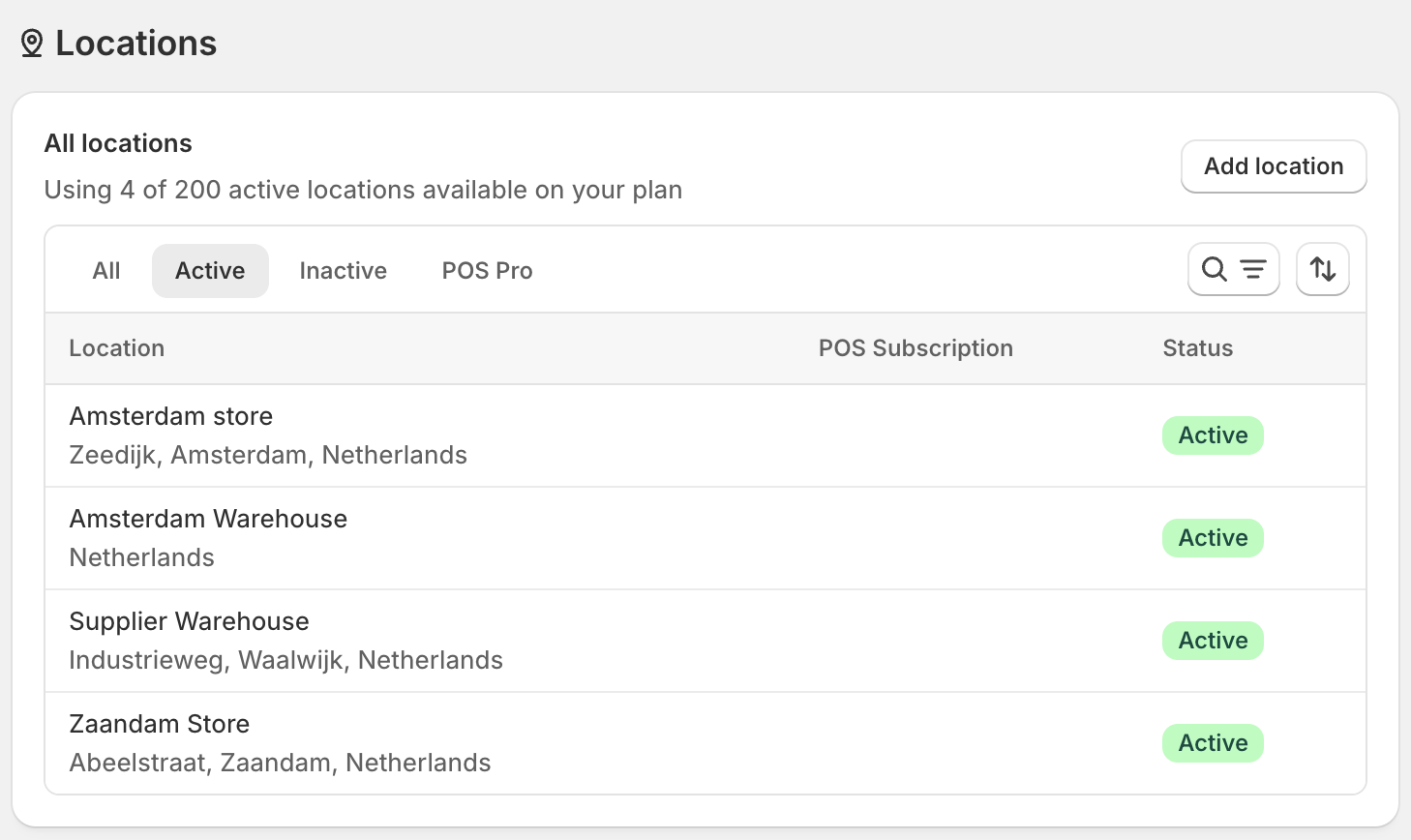
Assigning products to a location
Adding a location doesn't move any inventory into it. Each product variant needs to be told which locations it's stocked at.
Open a product, go to the Inventory section, and click Edit locations. You'll see every active location with a checkbox and the on-hand quantity at each one. A variant can be stocked at more than one location at once, which matters if you're keeping a small buffer of your own stock at the same warehouse a supplier feed also updates.
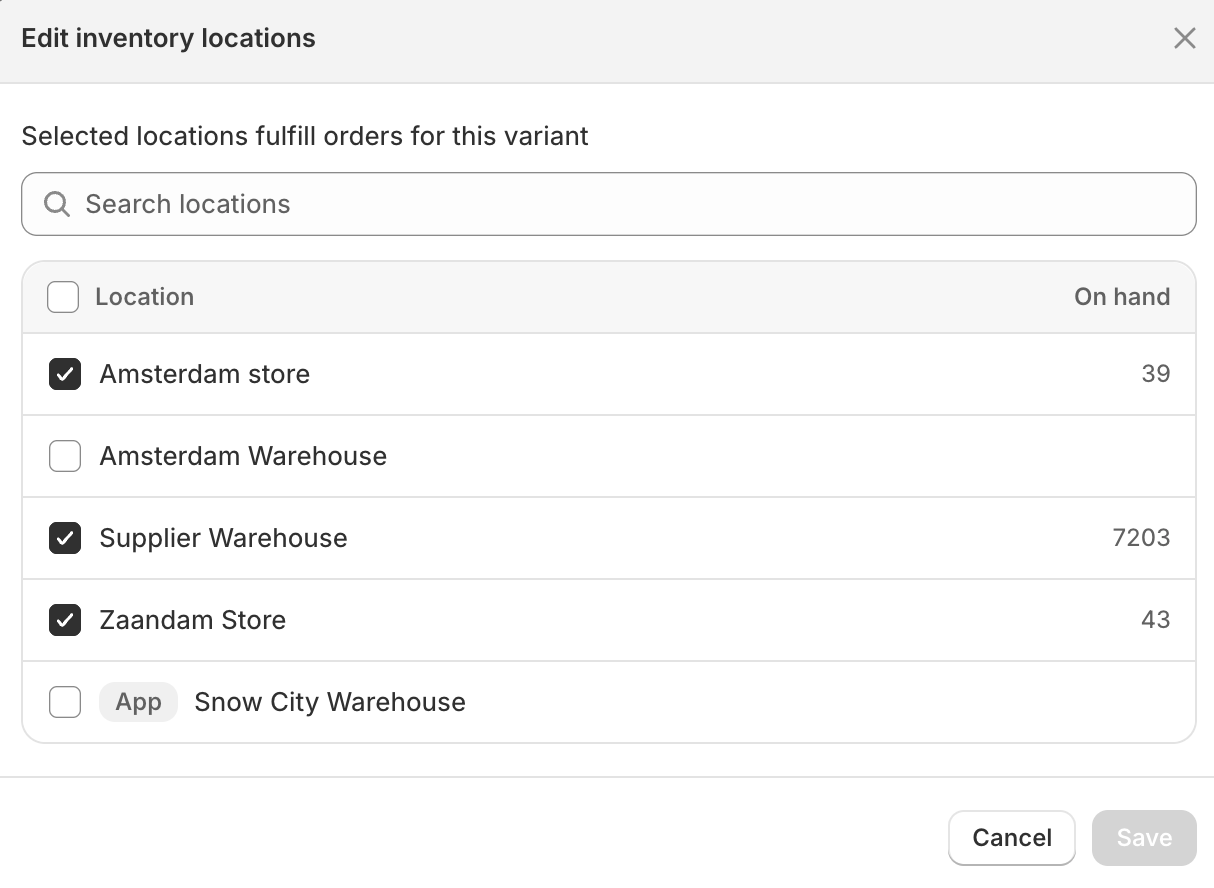
There's a separate setting worth knowing about, next to Stocked: "Use inventory at this location to fulfill online orders." You can track quantity at a location without letting Shopify actually sell from it, which is useful for a backup or overflow location you don't want live yet. Every product has to be stocked at a minimum of one location. Shopify won't let a variant end up with zero locations assigned.
Assigning shipping to a location
This is the step people skip, and it's the one that causes the support tickets later.
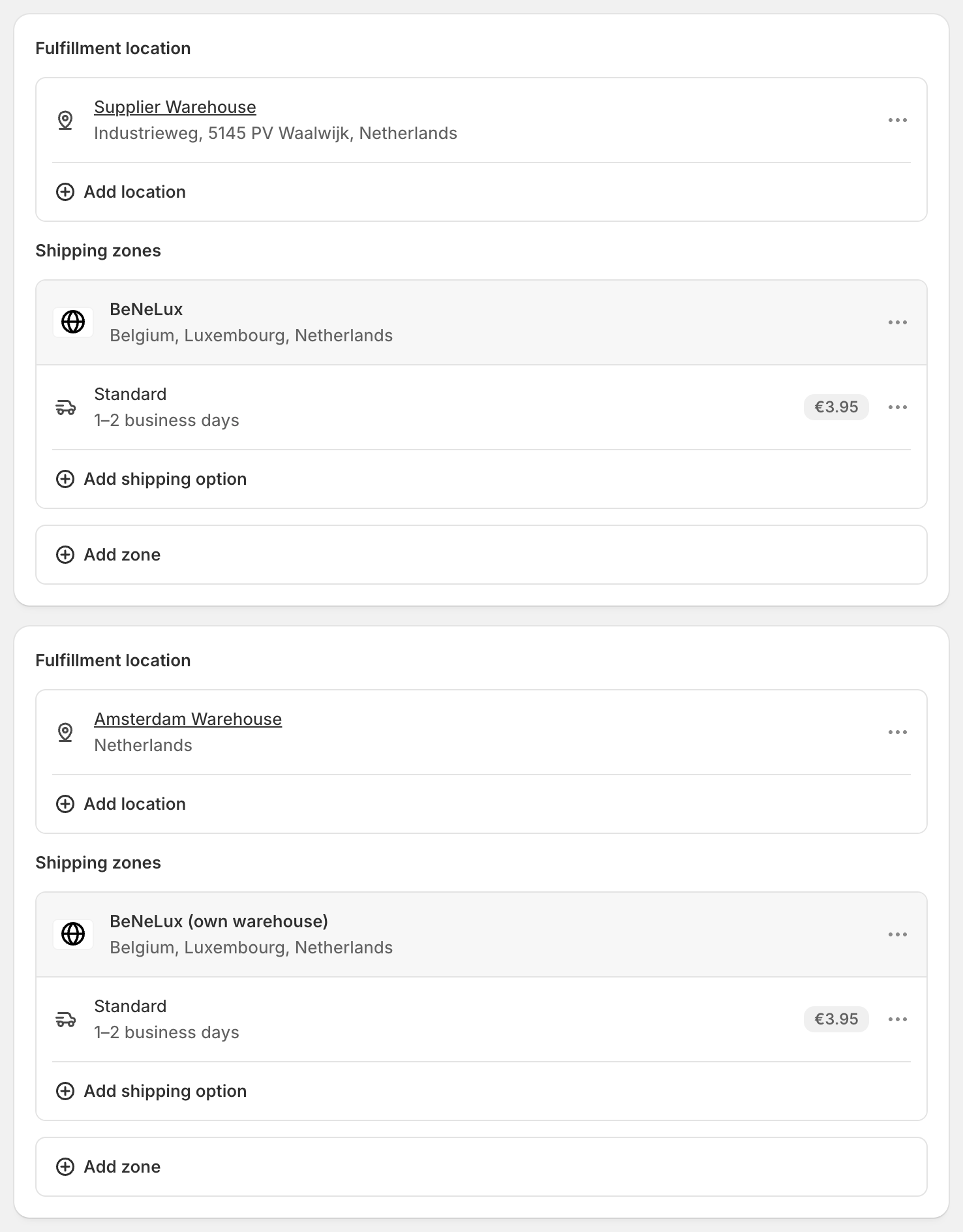
Shipping rates in Shopify live in shipping profiles, under Settings, then Shipping and delivery. Inside a profile, locations are organized into location groups, each with its own fulfillment locations and shipping zones. When you create a new profile, every location capable of fulfilling online orders gets bundled into one group automatically, all sharing the same rates and zones. If a supplier-stocked location ends up in a separate group of its own, it gets separate zones and rates, and that's exactly the setup that causes double shipping charges, covered next.
What if an order needs both locations?
Here's the part worth reading twice before you launch this.
If a single order contains one item from your own stock and one item from the supplier's feed, and those two locations sit in different location groups, Shopify splits the order into two shipments and charges shipping for each one separately. The rates get added together rather than combined into one flat rate. A customer who expected to pay €3.95 for shipping can end up paying €7.90 without anything looking wrong on either individual line.
Keep both locations in the same location group and Shopify charges a single flat rate for the combined shipment, even though the parcels still physically ship from two different places. To do that, turn on fulfillment for the second location and Shopify asks how it should ship: choose "Use existing shipping options from another location," pick the location whose group you want to join, and click Done. That folds the new location straight into the existing group instead of giving it its own zones and rates.
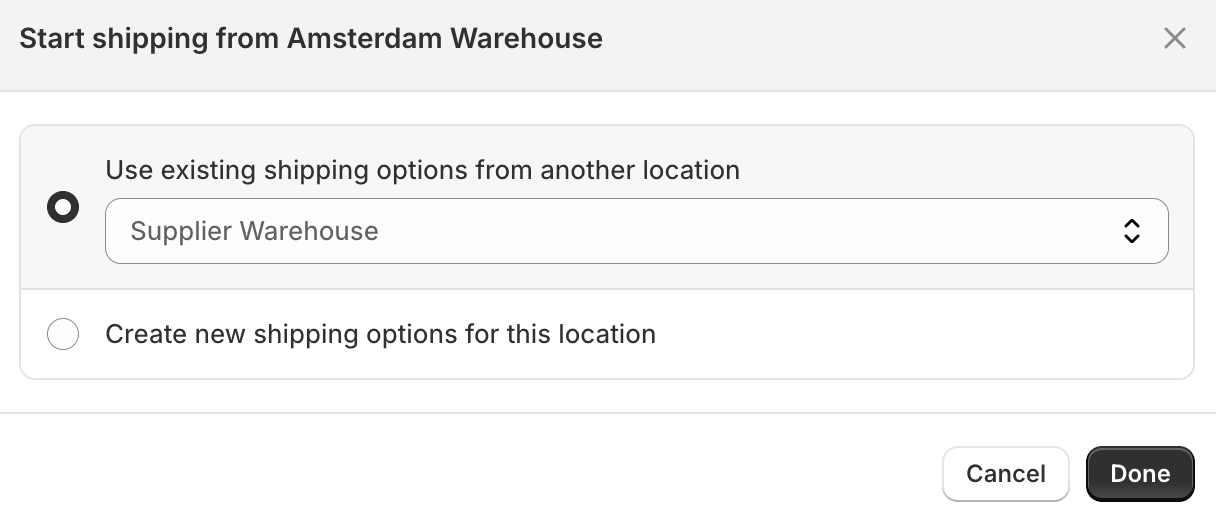
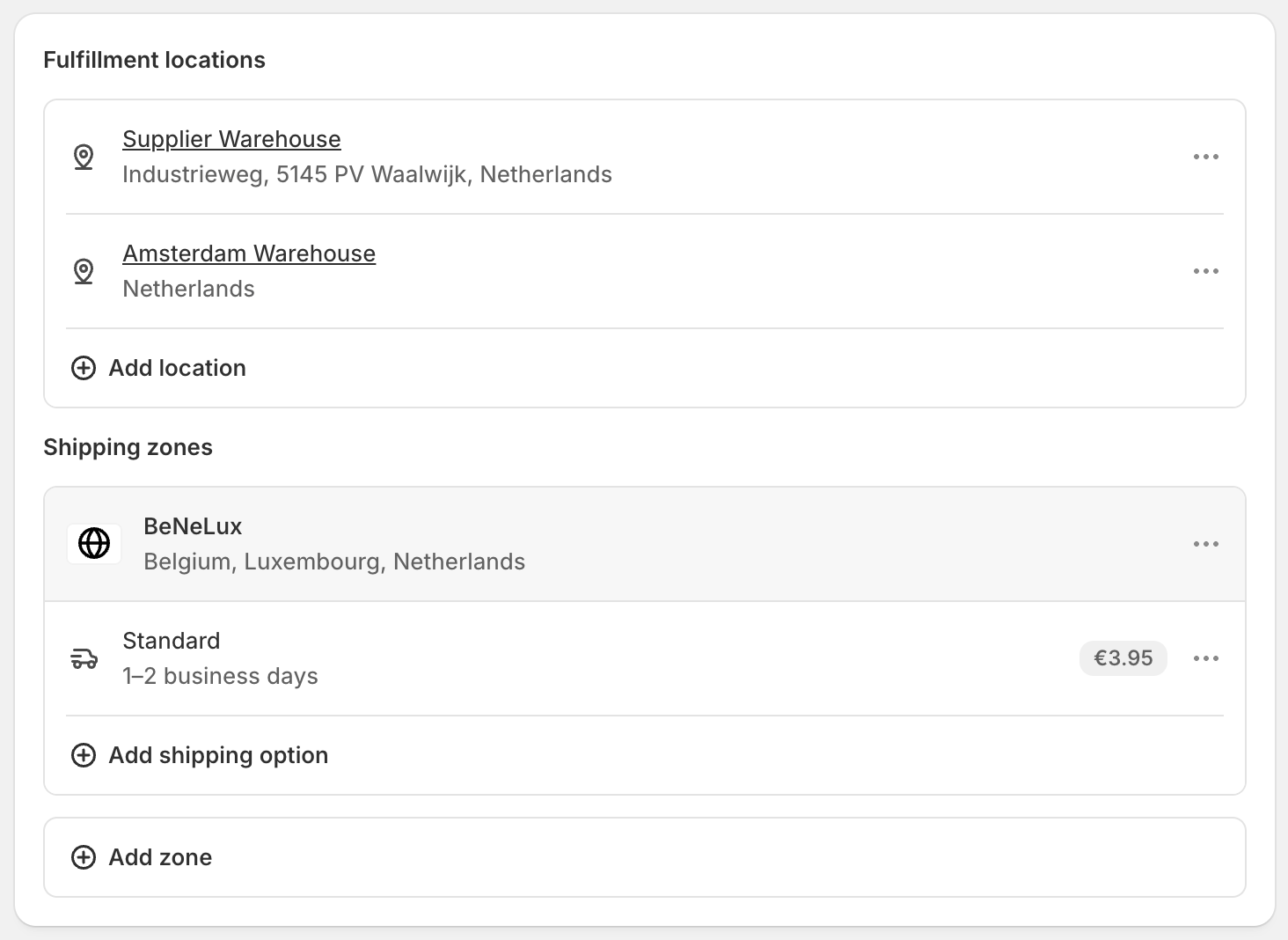
That's the setting that actually controls the outcome, not the location itself. If you deliberately want different rates for supplier-sourced items, drop-shipped items with longer delivery times for example, the combined charge from keeping them in separate groups is the tradeoff you're accepting. It's worth saying so at checkout or in your shipping policy so it doesn't surprise anyone.
Prioritizing a location with order routing
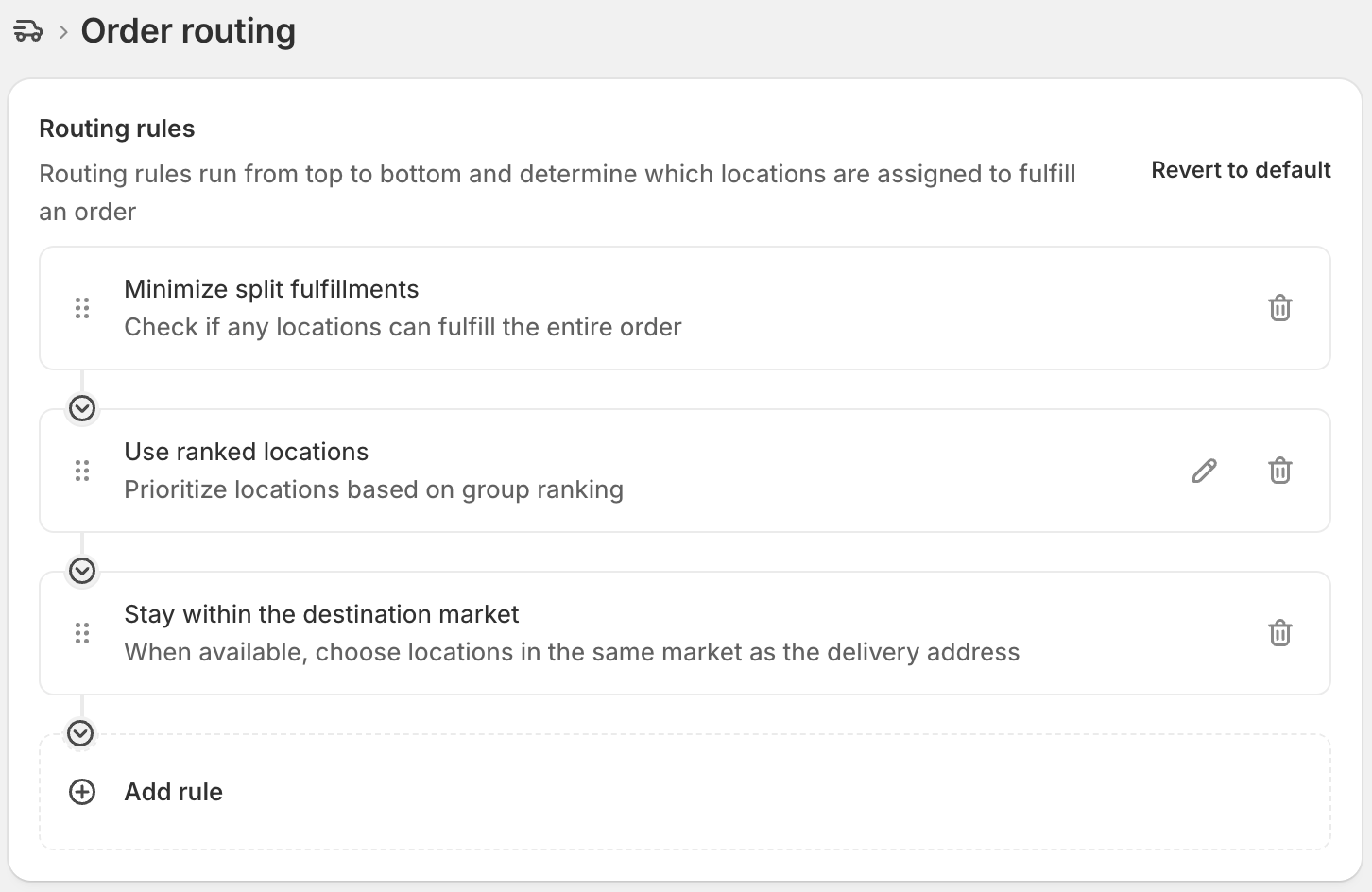
Once you have two active locations, Shopify's order routing decides which one fulfills an order when both could. It needs at least 2 active locations to do anything.
The default rules, in order, try to minimize split fulfillments, use ranked locations, and stay within the destination market. On Basic, Grow and Advanced you can use these built-in rules and reorder their priority, but you can't add custom logic. If you want your own stock to always take priority over the supplier location when both have the item in stock, for example to protect margin on items you already paid for, rank it above the supplier location under Settings, then Shipping and delivery, then Order routing. Custom routing logic built on Shopify Functions is Shopify Plus only.
Does your supplier deliver the feed on a URL rather than a one-off file? Simple CSV can schedule that import on Pro and Scale, and on every plan you choose which Shopify location the import updates. Point it at the supplier's location and your own stock at any other location stays untouched. We've written a longer Shopify supplier sync guide for that setup.