Guide
Importing and updating Dreamlove products in Shopify
Last updated: October 9, 2026
Dreamlove is a Spanish wholesaler of adult toys, lingerie and sexual health products. Its product feed can supply a Shopify store with product details, images, prices and stock.
This guide explains how to bring that feed into Simple CSV, what the app fills in and what to check before you run it. It also covers the stock and pricing rules available on Pro and Scale.
Before you start
You need a Dreamlove wholesale account with access to its Private Area and Simple CSV installed on your Shopify store. Log in to store.dreamlove.es, open Private Area in the top right, then choose Export catalogue. You will see XML and CSV feeds, a Mercamania CSV/XML pair and an XLS builder. Each format has a plain file and a compressed file. Dreamlove regenerates both every 30 minutes, so the URL stays the same while the file behind it changes.
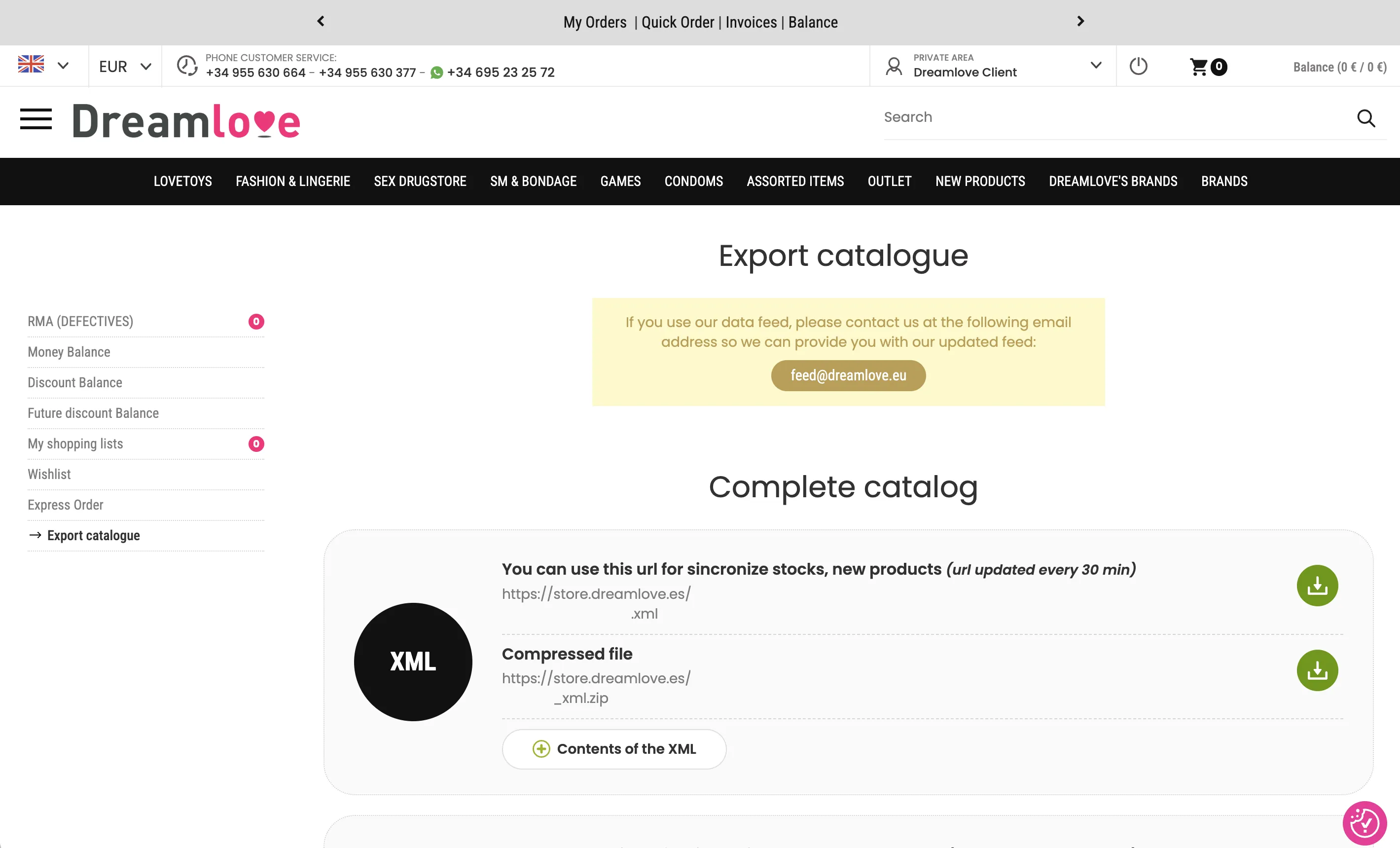
Use the XML Compressed file link for product imports. It includes full HTML descriptions, category trees, image galleries and translated titles in eight languages: English, Spanish, French, Portuguese, Dutch, German, Italian and Polish. The plain CSV is smaller and works better for stock-only updates. We cover that setup below.
What's inside the feed
Dreamlove's XML has one <product> element per item. Its fields include the selling price, cost price, VAT, stock per location, EAN-13 barcode, product URL and translated product copy. Simple CSV uses the title and descriptions that match your store's language. A Dutch store, for example, gets Dutch titles and descriptions without an extra language setting.
Items that belong together, such as the same product in different colors, become one Shopify product with variants. Simple CSV groups them automatically. You can turn off this option during mapping if you want every row to become its own product.
Running the import
Open Simple CSV from Shopify Admin and start a new Import. Choose Import by URL, then paste the XML Compressed file link from Dreamlove's export page. While Simple CSV downloads the archive, the validation screen shows a percentage when Dreamlove reports the total size, or the downloaded size so far when it does not. The screen then switches to validation before opening the usual mapping screen with Dreamlove's title, description, price, cost price, images, barcode and stock fields already filled in.
This is the same Import or Update flow used for any XML or CSV source. There is no separate supplier setup screen.
Check these settings on the Preview page before you run the import:
- Location. Every import writes stock to one Shopify location that you choose during setup. This is available on every plan. If you stock Dreamlove products at a specific warehouse, select that location.
- New product status. You can override the status for all newly created products with Active, Draft or Unlisted. Unlisted products are openable and buyable through a direct link but stay out of Shopify-powered search, collections and recommendations. Choose Draft or Unlisted if you want to review new Dreamlove listings before customers see them. This setting does not change existing products during an update import.
- Matching for updates. Later Update runs match by SKU by default. You can also use Dreamlove's EAN-13 barcode when it is the first barcode on the Shopify variant. Simple CSV compares SKU and the first barcode exactly after ignoring letter case and spaces around the value. A secondary Shopify barcode does not match, so the row is skipped as not found. If the same identifier belongs to more than one product, Simple CSV skips the row and logs the identifier and match count.
In our test, a full import of almost 13,000 rows took 21 minutes and created about 11,500 products. Fewer products than rows is expected because related rows become variants of one product.
Turning this into a recurring sync
You can run a URL import by hand on any plan, but Free processes up to 100 rows per file. That is enough to test the Dreamlove feed and mapping with a limited import. Processing the full catalog requires Pro or Scale. Scheduled automations are also available on Pro and Scale.
We recommend two automations. New products change slowly, so run the XML feed once a day. Stock changes faster. Point a second automation at the CSV Compressed file because it is smaller and faster to process. Scale can run that stock update every hour. Pro can run it as often as every 6 hours.
Pro and Scale can change the feed values without making you edit Dreamlove's files. Inventory rules can add a prefix or suffix to each SKU and set quantities below a limit you choose to zero as a safety buffer. When a feed includes a stock-status field, a rule can treat a value you choose as out of stock. Pricing rules can add or subtract a fixed amount or percentage, then round the result or give every price a .95 or .99 ending.
Save each rule with the import or update that needs it. Simple CSV applies the rule whenever that Pro or Scale scheduled file is processed. For example, a 25% markup and a .99 ending turns a Dreamlove price of 19 into 23.99.
Each automation targets the Shopify location you chose for it and reuses its matching settings. If you save the import as a Pro or Scale automation, the saved new-product status override is used whenever the scheduled file is processed.
If a scheduled run finds the same file and settings as the last fully successful scheduled run for that automation, Simple CSV does not touch Shopify. The import history still shows Completed, with the status No changes in the file and all counters at zero. Open the automation and choose Run now when you need to process the same file again. Run now always processes it.
What this doesn't do
A processed import applies Dreamlove's file to Shopify. It does not watch for Shopify-side changes such as a sale, a manual stock edit or a deleted product. A scheduled run that skips an unchanged file will not restore those changes. Use Run now to apply the same file again.
If you want Simple CSV to handle variants that disappear from the feed, Scale has an optional out-of-feed cleanup setting. It is off by default. When inventory is mapped, cleanup sets a missing variant to zero only at the location that import updates. Stock at other locations stays unchanged.