Guide
How to Sync a Supplier Product Feed with Shopify: A Complete Guide
Last updated: 3 May 2026
Manually downloading a supplier's CSV every Monday morning, opening it in Excel, fixing a few columns and uploading it to Shopify works - until it doesn't.
The week you're on holiday, prices go stale. The week the supplier adds a column, the import fails silently. The week stock is wrong, customers buy products you can't ship.
If you sell products from a supplier who provides a CSV feed - a wholesaler, a brand or a dropship partner - there's a better way. With the right setup, your supplier's feed flows into Shopify on its own: prices update, stock updates, new products appear and you only step in when something needs attention.
This guide covers:
- What a supplier sync actually needs to do
- The four common ways merchants handle it and where each breaks
- The criteria for a good sync setup
- A step-by-step walkthrough of setting up automated supplier sync with Simple CSV - including matching, scheduling and monitoring
- Real-world scenarios with example schedules
- The tricky cases - authentication, discontinued products, file formats and limits - handled honestly
If your supplier's feed is a one-time import rather than an ongoing sync, our complete guide to importing products with CSV covers that scenario in detail. This guide picks up where that one ends: when the import isn't a one-off and the data needs to keep flowing.
What "Sync" Actually Needs to Do
Before picking a tool, it helps to be clear about the four jobs a supplier sync handles. They're not the same job and they don't all need to run at the same time:
- New products appear in the feed. The supplier added 30 SKUs last night. You want them in your store with images, descriptions and prices.
- Existing prices change. A brand raised wholesale prices by 8% across the board. Every product you sell from them needs the new price reflected.
- Stock levels change. The supplier sold a batch to another retailer and is down to two units of a popular SKU. Your store should show "2 in stock" before someone orders ten.
- Products disappear from the feed. A SKU is discontinued. The supplier silently drops it. You probably don't want to keep selling it, but you also don't want it auto-deleted from your catalog without a check.
The first three jobs benefit from automation - they're frequent and predictable. The fourth is an architectural decision that needs a deliberate answer, not a default. We'll come back to it.
The Four Ways Merchants Handle Supplier Sync
There's no single right answer. The right choice depends on the supplier's feed format, the size of your catalog and how much engineering you want to own.
Manual download -> upload. Open the supplier's portal, download the CSV, save it, open Shopify, click Import. Works for the first few weeks, then becomes the chore that doesn't get done. One missed update can cost more in oversells than the entire automation would have cost.
Shopify's built-in CSV importer. Free, capable but built for the wrong job. It can't fetch from a URL, can't run on a schedule and can't map a supplier's columns to Shopify's columns. For a one-off catalog import it's fine - see our complete guide to importing products with CSV - but for ongoing sync it's the wrong tool.
Custom Shopify development. A developer wires the supplier's feed directly into Shopify's API. Reliable when the feed format is stable, expensive every time the supplier changes anything. Reasonable for very large stores with unusual requirements; overkill for most merchants who need a daily price refresh.
Full ERP, PIM or dropship platform. Powerful, comprehensive and expensive. Often charges per SKU or per order on top of a base fee. Many merchants need 5% of the feature set and pay for 100% of the cost.
A focused CSV sync tool. Right answer when the feed is CSV, sits at a public URL and you want an automated setup without an enterprise stack. This is where Simple CSV fits.
If your supplier's feed is XML or JSON instead of CSV, this article still covers the workflow, but you'll need a different tool for the actual sync. Inventory & Price Sync handles XML and JSON feeds.
What You Need from a Supplier Sync Setup
Use these eight criteria to evaluate any supplier sync setup, including the one you'll build below:
- URL-based imports - no manual download step
- Scheduled execution at a known time
- Column mapping, so the supplier's headers don't have to match Shopify's
- Match by SKU, barcode or product ID - not just product handle
- Choice between create-only or update-only on a per-schedule basis
- Pre-flight preview before a run touches the live store
- Logs with row-level detail
- Backup integration before destructive runs
Anything missing from this list is a problem you'll hit eventually. URL imports without scheduling means you still have to remember to run it. Scheduling without column mapping means you're stuck with a single fragile feed format. Logs without row-level detail means a failed sync is a black box.
Setting Up Supplier Sync with Simple CSV
Here's the actual setup, end to end. The walkthrough follows a real example: a wholesale supplier who provides a CSV feed at an HTTPS URL and updates it once a day overnight.
Step 1 - Get your supplier's feed URL
Ask the supplier for a feed URL. Most B2B portals offer one - sometimes called a "stock feed," "product feed," or "data export URL." It should be publicly accessible over HTTPS and return a CSV file when you open it in a browser.
- HTTPS only. Simple CSV doesn't fetch from FTP or SFTP. If your supplier only offers FTP, ask whether they have an HTTPS option or set up a small mirror script that pulls the FTP file every morning and serves it from your own HTTPS endpoint. For larger setups this is a one-line cron job to a static file host.
- Authentication. If the URL requires a username and password, use basic auth in the URL itself:
https://username:password@example.com/feed.csv. API key headers, OAuth and signed URLs aren't supported - for those, the same mirror-script approach works. - Test the URL in a browser in private mode, so your saved credentials don't disguise a problem. If the file downloads cleanly there, Simple CSV can fetch it.
Save the URL - you'll paste it into the import step.
Step 2 - Choose your import strategy
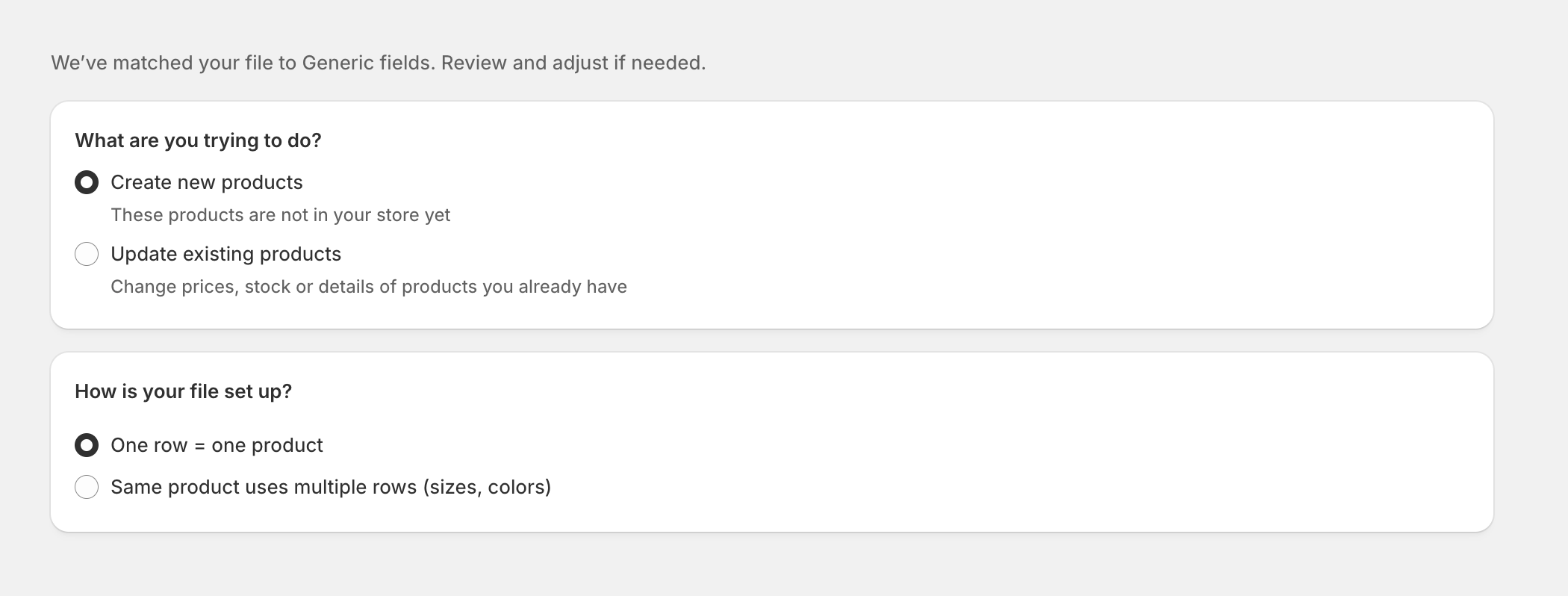
When you start a new import in Simple CSV, the first decision is what the import is for: creating new products or updating existing ones.
- Inventory and price refresh: Update existing products only. Faster, safer and avoids accidentally re-creating products you've manually customised.
- Adding new products from the feed: Create new products. Often run on a separate schedule from the price/stock update.
The second choice on this screen - whether one row equals one product or whether the same product spans multiple rows - depends on whether the supplier's feed contains variants. Most B2B feeds use one row per SKU.
Step 3 - Map your columns
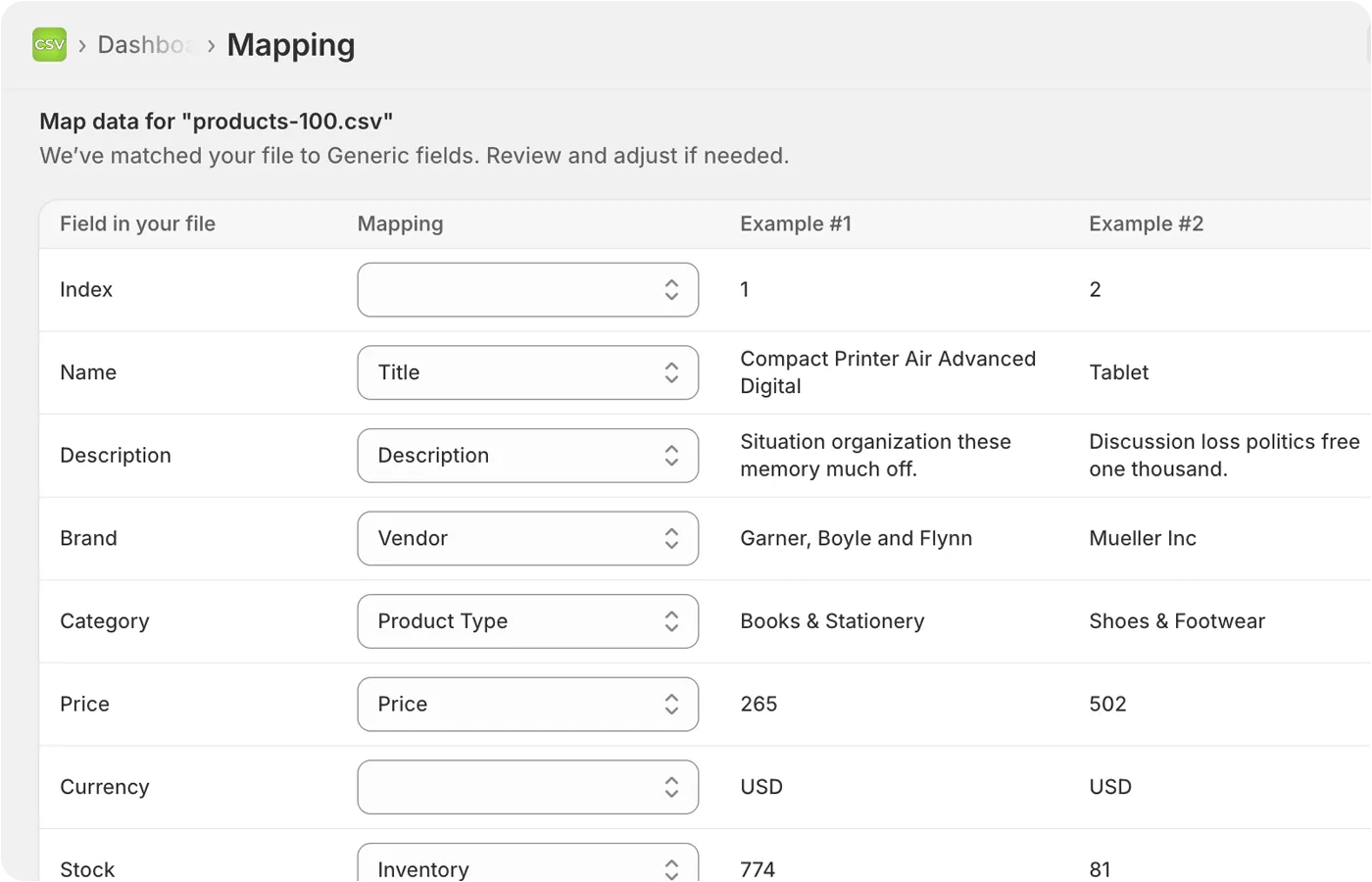
Suppliers don't use Shopify's column names. They use whatever their system happens to call them - OFFERID, NAME, PRICE_OLD, WEIGHT, often capitalised, often in a language other than English.
Simple CSV reads the supplier's headers and proposes a mapping. You confirm or change each field. Up to five examples per column show the actual data in the feed (scroll horizontally to see them all) so you can spot a wrong guess immediately - for instance a column labeled OFFERID that actually contains a 13-digit barcode rather than a Shopify product ID.
For a typical supplier feed, the fields that matter are:
- The match key, usually SKU
- Price and Compare-at price if the feed has both regular and sale prices
- Inventory quantity
- Title, description and images - usually only on the create side, since you may not want supplier title changes overwriting your edited Shopify titles
A rule that saves a lot of regret: on update runs, map only the fields you actually want changed. If you've spent time rewriting the supplier's terrible default titles, don't map the title column on the daily update. The supplier's "Premium Quality 100% Pure Set 3-Pack" doesn't need to overwrite your "Outdoor Wood Care Set" every morning.
Step 4 - Choose how products are matched
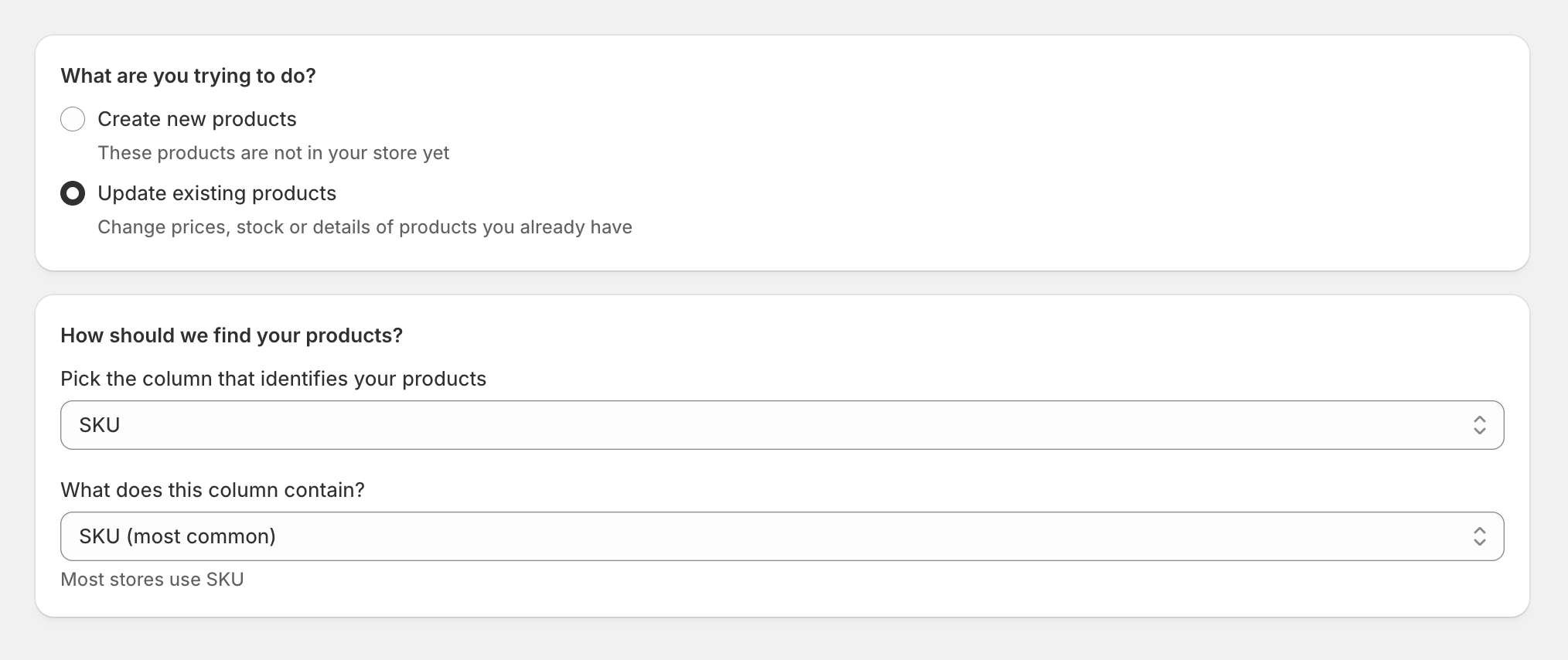
For an update run, the most important decision is how Simple CSV figures out which row in the supplier's feed corresponds to which product in your store.
- SKU - the default and the right answer for most supplier feeds. Stable across renames and URL changes. Use this unless you have a specific reason not to.
- Barcode - useful when the supplier provides UPC/EAN/GTIN consistently but doesn't share consistent SKUs.
- Product ID - Shopify's internal numeric ID. Rare in supplier feeds; almost never the right choice.
- Handle (URL) - the product's URL slug. Fragile because handles change when titles change. Avoid for supplier sync.
Match by SKU. The exception is large dropship setups where the supplier publishes barcodes consistently and SKUs are derived per-retailer.
Step 5 - Review the summary before running
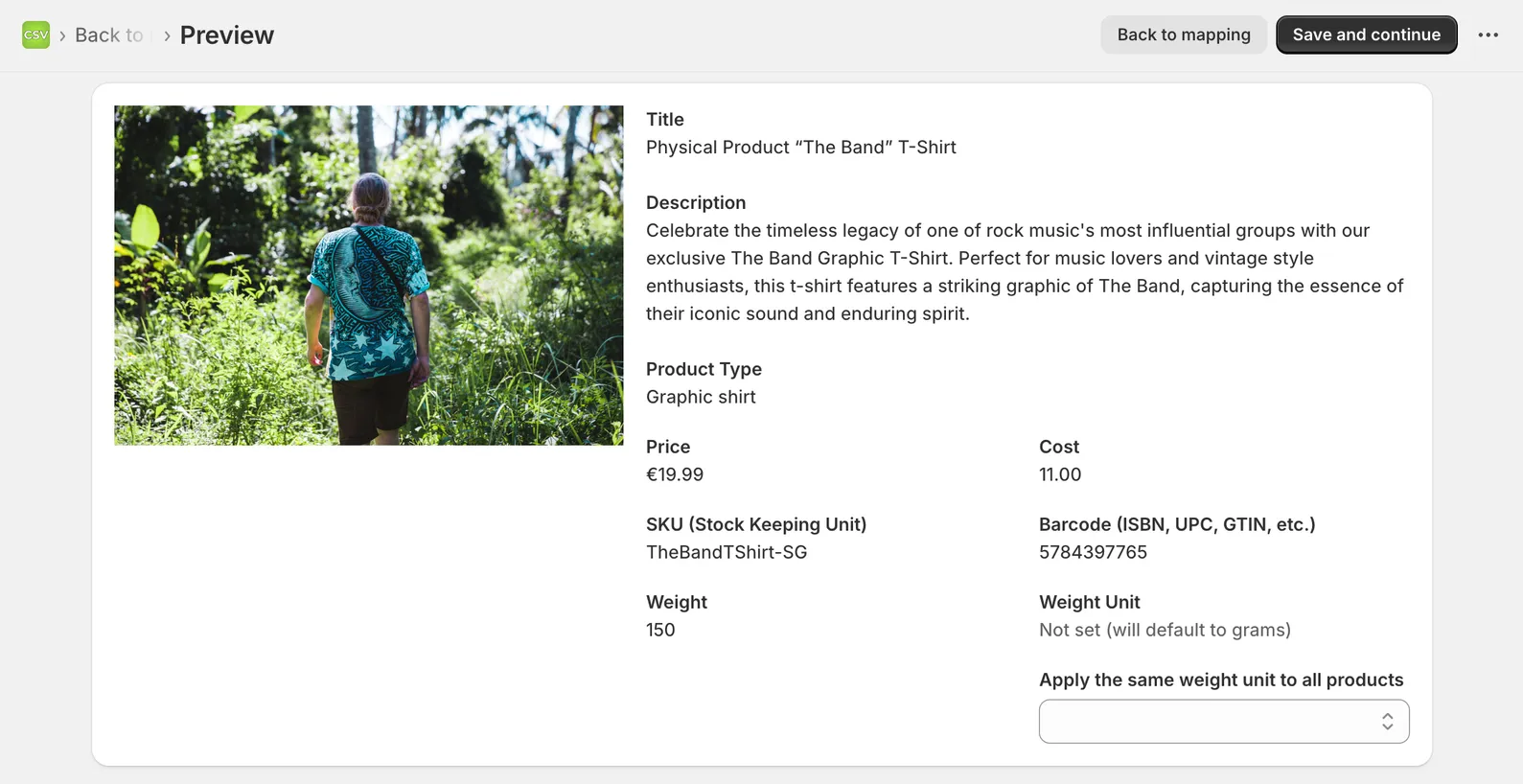
Before any run touches your live store Simple CSV shows a pre-flight summary. A full preview of the data being changed is shown for imports of new products. For updates the summary tells you the row count, the source file or URL and the match key.
Read this screen. The number of rows tells you whether the feed is the size you expected - a feed that's suddenly 12 rows when it's normally 4,000 is a sign the supplier's export broke. The match key reminds you what's being used to find products.
The "Create backup now" link is worth using before any large update. Image changes in particular can't be reversed cleanly and a backup taken sixty seconds before a sync gives you a clean rollback path. Simple CSV integrates with the free backup app for this.
From this screen you have two choices: run it once now (Start update) or set it up to run on a schedule (Schedule).
Step 6 - Schedule the recurring sync
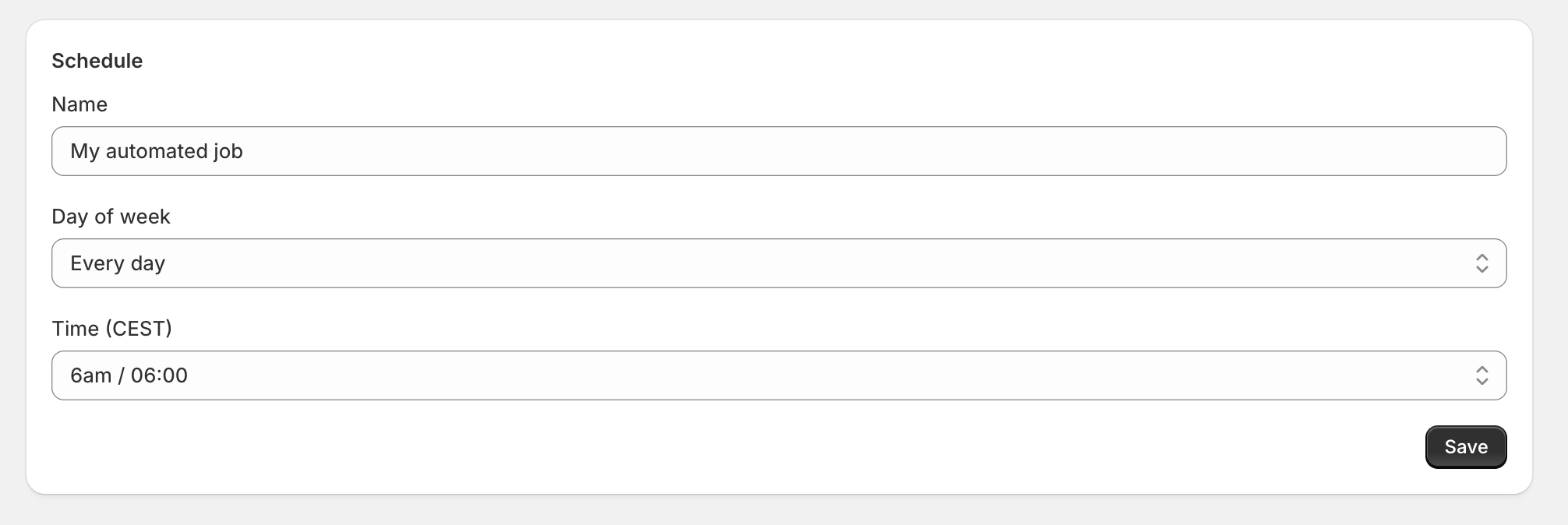
This is where supplier sync becomes actual sync.
A schedule has three fields:
- Name - anything that helps you recognise this run later, such as
Supplier A - daily stockorBrand X - weekly price - Day of week - every day or a specific weekday
- Time - the hour to run, in your local timezone
Each schedule runs once at the chosen time. To run more often than once a day from one feed, create multiple schedules.
- Run before your shop's peak hours. If most of your traffic is 9 AM onward, schedule the sync for 4 AM. Fresh data is live before customers arrive and the sync doesn't compete with checkout traffic for API capacity.
- Run after the supplier's update. If the supplier publishes their daily feed at 2 AM their time, schedule yours for at least an hour after, accounting for timezone differences.
- Run separate schedules for create and update. Each schedule has one strategy: create new products or update existing ones. For most suppliers this means two schedules - one to add new products and one to refresh prices and stock on existing ones. Two narrower schedules are also easier to debug than one combined run would be.
Step 7 - Monitor
Once a schedule is live, you check on it through two screens.
The Recent imports list shows every run manual or scheduled with its current status - Completed, In progress, Scheduled or Not completed.
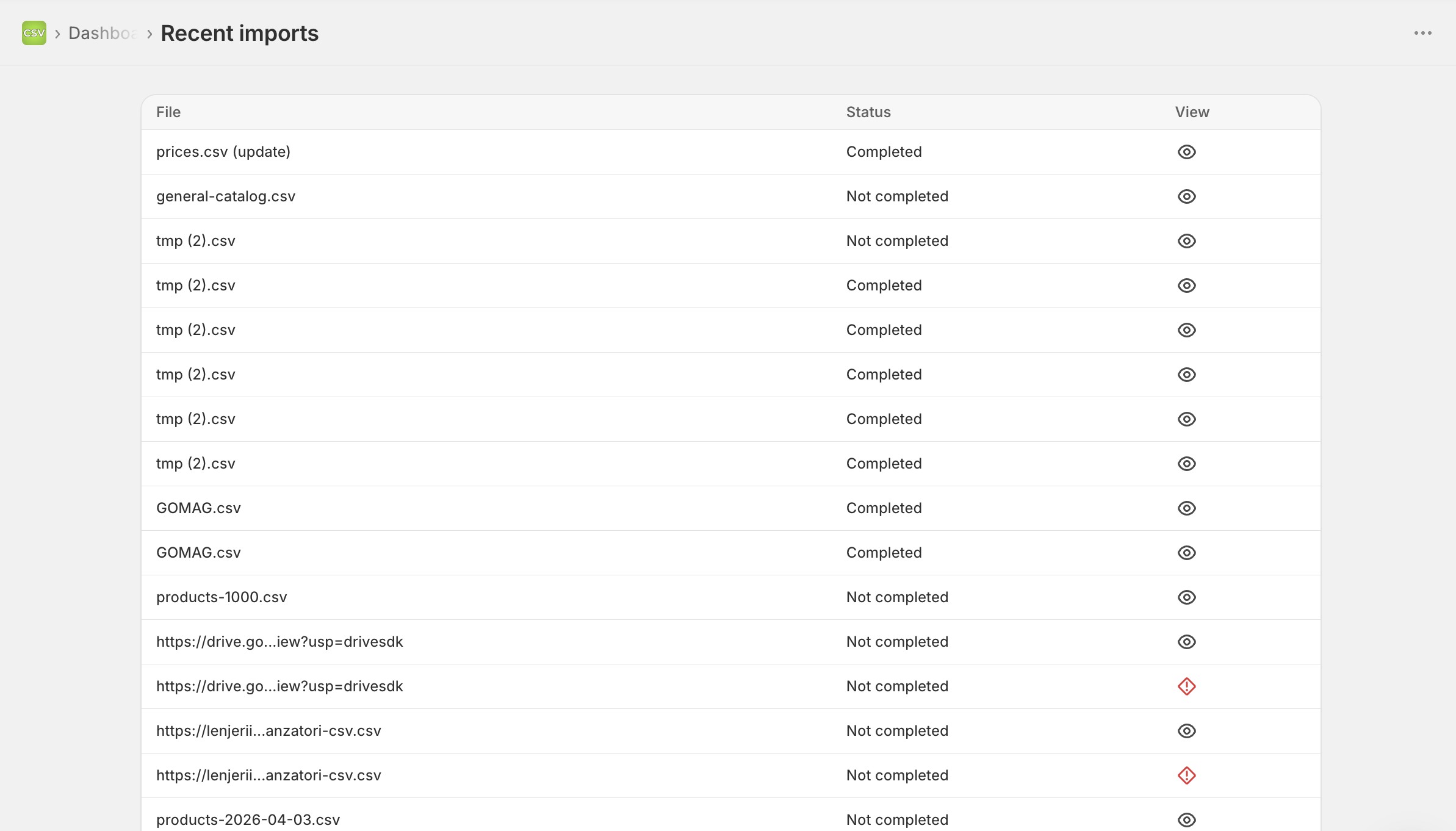
Open any run for the row-level detail.
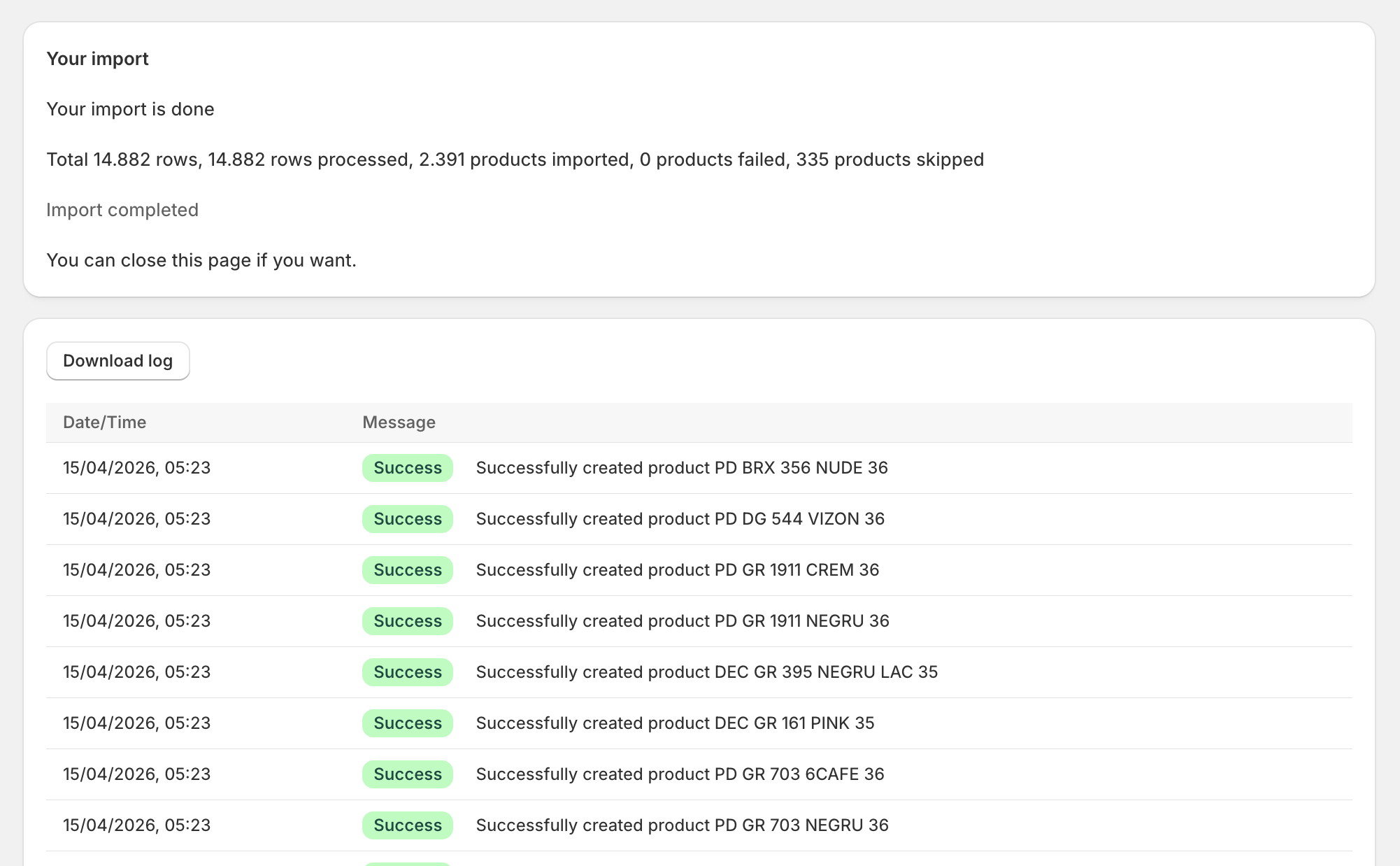
The summary at the top tells you what happened in aggregate: rows processed, variants updated, variants failed and variants skipped. Below that, every row gets a status - Success, Warning or Error - with a message explaining what happened.
For audit, the log can be downloaded as a file - useful when a customer queries a price change two months later and you need to confirm exactly what synced when.
Notifications are in-app - there's no email yet when a run fails. Until that changes, the recommended habit is to check the Recent imports list once a week, especially in the first month after setup.
Real-World Scenarios
Three common supplier sync setups and how to configure each.
Daily inventory sync from a wholesale supplier
You sell ~3,000 SKUs from a wholesaler. They publish a daily stock feed at 2 AM. You want stock levels in your store to reflect their warehouse before your customers wake up.
- Strategy: Update existing only
- Match: SKU
- Mapped fields: SKU + inventory quantity and nothing else
- Schedule: Every day at 4 AM local time
Why minimal mapping matters here: you've curated titles, descriptions and images. The supplier's feed has all of those but you don't want any of them touching your store on the daily run. Map two fields and only two fields and the daily sync becomes boring - which is exactly what you want.
Weekly price update from a brand
You sell a brand's products at retail. They update wholesale prices weekly, on Sundays. You want your retail prices and compare-at prices to reflect the new wholesale costs every Monday morning.
- Strategy: Update existing only
- Match: SKU
- Mapped fields: SKU, price and compare-at price
- Schedule: Every Monday at 6 AM
The compare-at price column is what surfaces sale rotations cleanly. When the brand puts a product on sale, the feed populates compare-at; when the sale ends, compare-at goes blank and your "was/now" UI clears automatically.
New product additions from a dropship supplier
A dropship supplier adds new products throughout the week. You want them in your store within 24 hours with images descriptions and starting prices. You also want to review them quickly before they go live to customers.
- Strategy: Create new products
- Overwrite behavior: Skip products with the same SKU (so the daily run only creates products that don't already exist)
- Mapped fields: SKU, title, description, images, price, inventory quantity and vendor
- Schedule: Every day at 3 AM
- Set new products to Draft status then promote to Active after a quick review
Create runs use an Overwrite behavior setting rather than a match key. Three options: import all rows and create duplicates if a product with the same identifier already exists, skip products with the same EAN or skip products with the same SKU. For a daily dropship feed Skip-by-SKU is the safe choice - it stops the run from creating a duplicate Shopify product every time the supplier's feed includes a SKU you already added yesterday.
Pair this create schedule with a separate update schedule for the same supplier. Two schedules - one creates new products one refreshes prices and stock on existing ones - easier to reason about and easier to debug when something goes wrong.
Advanced Pricing and Inventory Rules (Pro and Scale plans)
The walkthrough above covers the core sync workflow. On the Pro and Scale plans Simple CSV adds two sets of rules that solve the most common "the supplier's data isn't quite right for my store" problems - without editing the feed and without manual fix-ups after each run.
These rules apply automatically every time the schedule runs so the logic only needs to be configured once.
Advanced inventory rules
Three rules that handle the realities of supplier stock data.
Add a prefix or suffix to the SKU. When the supplier's SKUs collide with your existing SKUs or when you want to namespace a supplier's products you can prefix or suffix every incoming SKU. A SKU of H4H499.2 becomes SUP-H4H499.2 with a SUP- prefix or H4H499.2-EU with an -EU suffix. The mapping screen shows a live preview of the resulting SKU as you type.
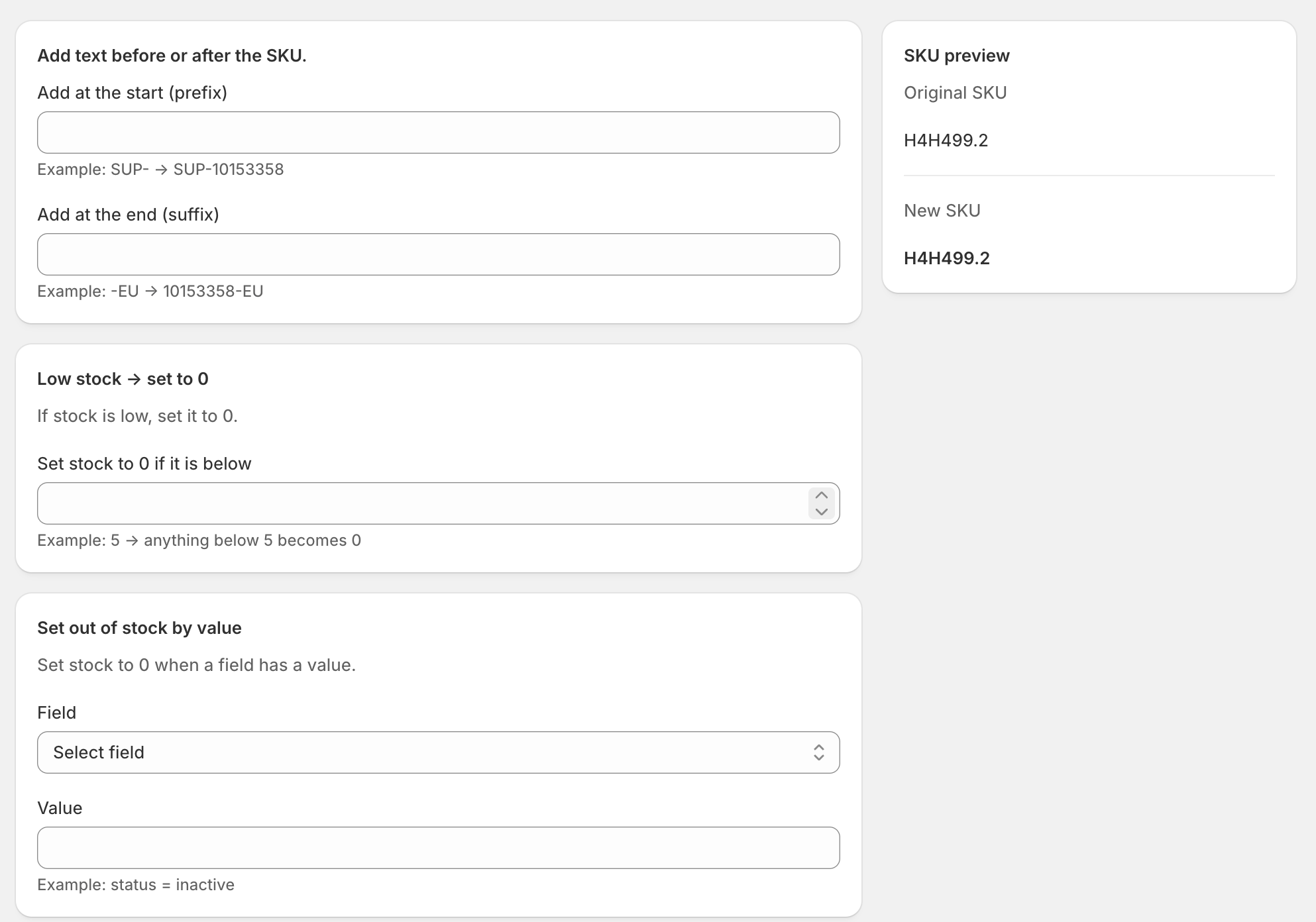
Low stock -> set to 0. A safety threshold for selling sold-out products. If you set the threshold to 5 anything below 5 is treated as zero stock for the import. This protects against the standard "supplier shows 2 in stock but they shipped to another retailer first" problem - by the time you process the order they're sold out and you have an angry customer. Setting the threshold a little above zero leaves a buffer.
Set out of stock by value. Some suppliers don't track stock as a number - they use a status field like available / inactive / discontinued. This rule lets you pick a field and a value that means "out of stock". When the rule matches the row's stock is set to zero regardless of what the stock column says.
Combined these three rules let you take a messy supplier feed and produce clean stock data in your store without ever editing the CSV by hand.
Advanced pricing rules
Three rules for turning supplier prices into retail prices.
Fixed change. Add or subtract a fixed amount from every price. Useful for shipping cost markups or fixed-amount commission. Use a minus sign to subtract - -3 turns a price of 10 into 7.
Percentage change. Add or subtract a percentage. The classic markup. 25% turns 10 into 12.50. -20% turns 10 into 8. Percentage change is applied after the fixed change so you can stack them - for example add EUR 2 to cover packaging then add a 30% margin on top of that.
Price rounding. Make prices look retail-ready. Round to the nearest whole number, half or other increment and choose a price ending - .99, .95 or keep as is. A supplier price of 19 with a 25% markup and .99 ending becomes 23.99 instead of 23.75.
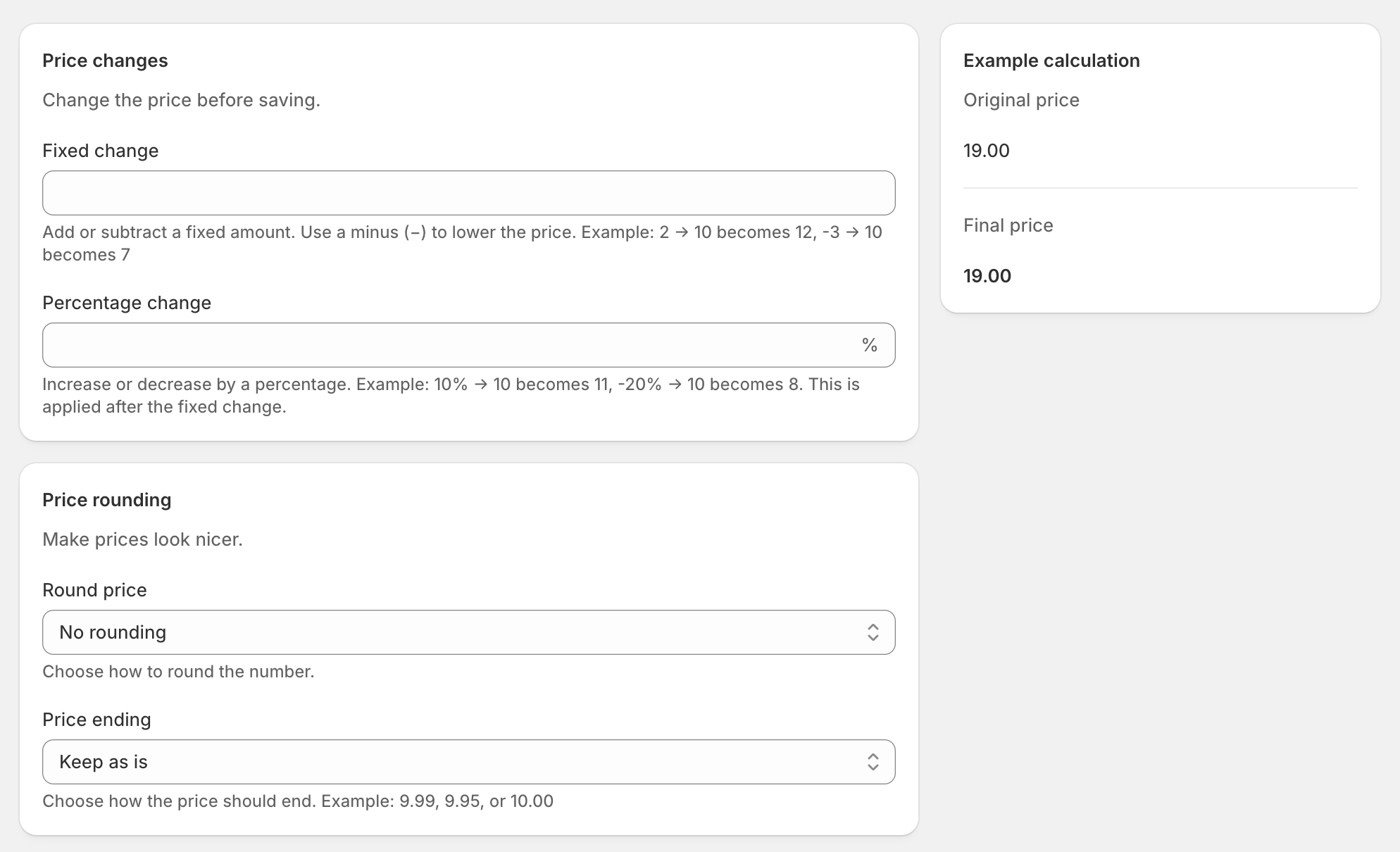
A common combination: percentage markup plus rounding to .95. The supplier raises wholesale prices, your retail prices update overnight at the same margin and every product still ends in .95. No manual editing of any feed at any point.
Why these rules matter for sync
Without these rules every supplier feed needs preprocessing - either by editing the CSV before importing or by fixing the data after import. With them the supplier's raw feed flows in as-is and the rules apply on every scheduled run. The supplier could change their price column tomorrow and your retail prices stay correctly marked up because the rule lives in Simple CSV not in the feed.
These rules are part of the Pro and Scale plans. Free-tier users still get scheduled URL imports and column mapping; the rules above are what unlock running supplier sync without ongoing manual work.
Tricky Cases and Honest Limitations
This is the section that earns trust by not hiding the gaps.
Discontinued products in the feed. When a SKU disappears from the supplier's feed, Simple CSV does nothing - the product stays as-is in Shopify. This is intentional. Auto-archiving on disappearance is dangerous: a one-day feed glitch could affect a large part of your catalog. The trade-off is that "discontinued" detection becomes a manual job. Suggested workflow: monthly, export your Shopify products, diff the SKU list against the latest supplier feed and archive the missing ones. For active dropshippers, automating this diff in a small script is worth the hour it takes to write.
Authentication beyond basic auth. Basic auth in the URL works: https://user:pass@example.com/feed.csv. API key headers, OAuth tokens and signed URLs with expiring parameters don't. The standard workaround is a small middleware: a script that authenticates to the supplier's API with the right method, downloads the CSV and serves it from your own HTTPS endpoint with basic auth. A free Cloudflare Worker can do this in under fifty lines.
FTP and SFTP feeds. Not supported. Most modern suppliers offer HTTPS too - ask. If FTP is the only option, mirror it: a cron job pulls the FTP file every morning and pushes it to a public HTTPS path. Same fix as above.
XML and JSON feeds. Not Simple CSV's job. For non-CSV feeds, Inventory & Price Sync handles XML and JSON.
Sub-hourly sync. A schedule runs once at its chosen time. Multiple schedules per day are possible but a true real-time or sub-hourly sync from a single feed isn't. For most supplier feeds - which themselves only update once or twice a day - daily or twice-daily is the right cadence anyway. If you genuinely need sub-hourly updates, the use case is usually flash sales or inventory parity for high-velocity SKUs and you're probably outside the right tool.
Email failure notifications. Notifications are in-app only at the moment. Until email alerts ship, check the Recent imports list weekly.
None of these are dealbreakers for the core use case - daily sync of a CSV feed via HTTPS - but if your situation needs more than what's listed here, knowing now saves frustration later.
Best Practices
A short list, learned from running these setups in production:
- Test with one row first. Before scheduling, manually run a one-row CSV to confirm the mapping and matching are correct. A row-level success on a single product is much cheaper than discovering a mapping bug across 3,000 products.
- Backup before the first large sync. A free backup app saves you from the rare-but-real cases where a feed change cascades into a destructive update.
- Match by SKU. Stable, predictable, the right default for almost every supplier feed.
- Schedule outside peak shop hours. Imports use API calls; large imports can compete with checkout traffic if scheduled mid-afternoon.
- Check logs weekly, especially in the first month. Most issues with a supplier sync surface in the first few weeks - a column rename, a feed format change or an authentication expiry. After a month of clean runs, monthly checks are usually enough.
- One schedule per concern. A daily price refresh, a daily stock refresh and a daily new-product create are easier to debug as three schedules than one.
- Save your mapping configs. Re-importing from the same source reuses the saved mapping - no need to re-map columns every time.